
6 min read
TV Connections and Setup Guide
Everything you need to know about the ports on the back of a TV and how to set them up correctly the first time.
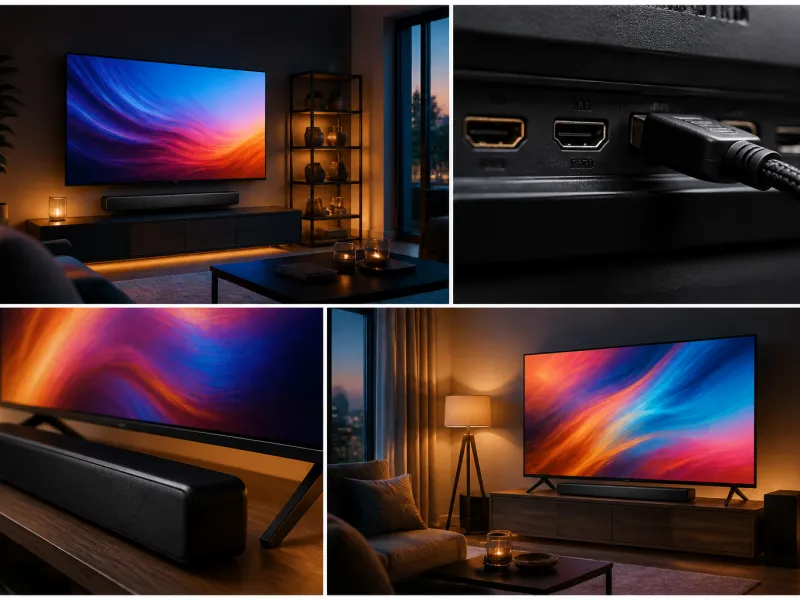
The back or side panel of a modern television carries a row of ports that decide what you can connect and how well it will work. This guide explains each connection type in plain terms, what to plug into which port, and how to set up a new TV correctly from the first time you switch it on.
01
HDMI versions and ports
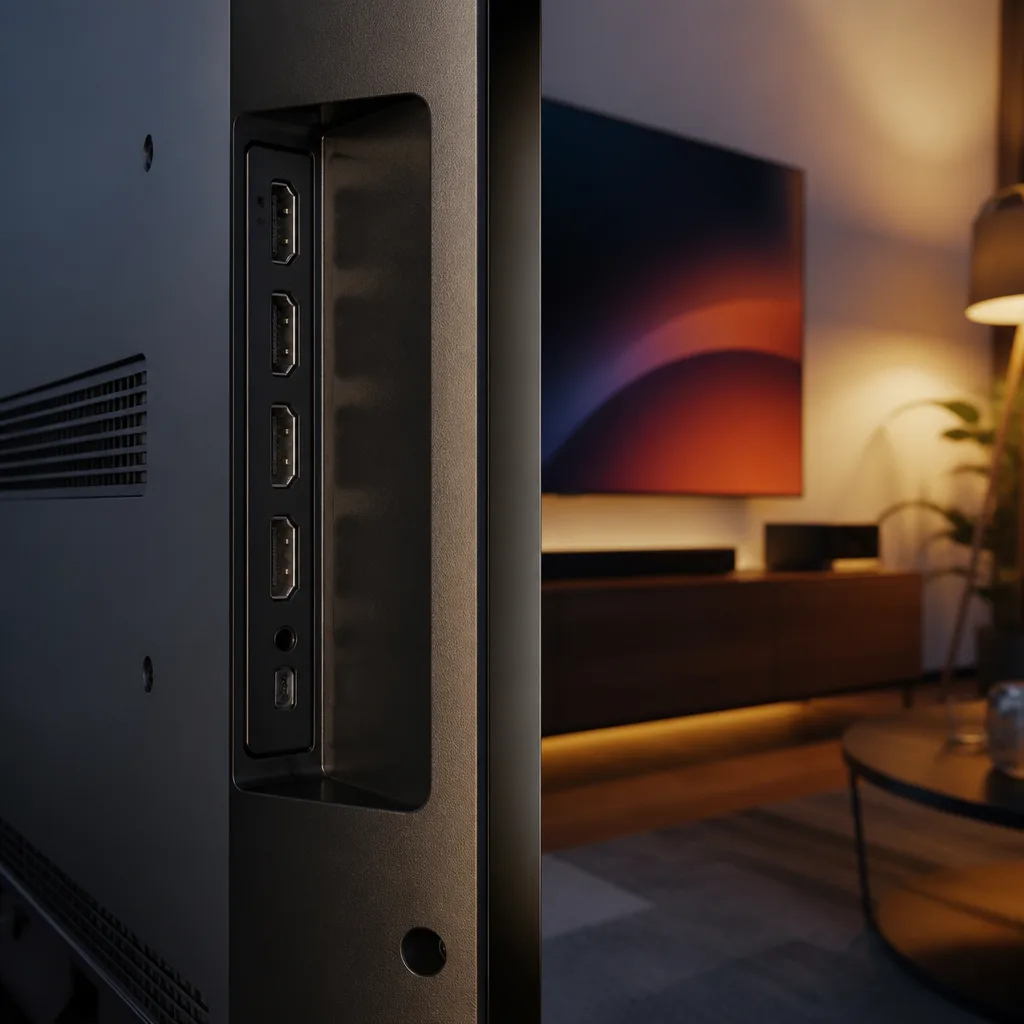
HDMI carries picture and sound over a single cable and is the main connection for consoles, streaming devices, receivers and set top boxes. Not all HDMI ports on a TV are identical. HDMI 2.1 supports up to 48 Gbit/s of bandwidth, enough for 4K at 120 Hz, Variable Refresh Rate (VRR) and Auto Low Latency Mode (ALLM), while older HDMI 2.0 ports are limited to lower frame rates at 4K. Many TVs mix port generations, so check the manual to see which numbered ports carry full HDMI 2.1 bandwidth before connecting a games console. Our HDMI 2.1 explained guide covers the standard in depth.
| Port type | Typical use |
|---|---|
| HDMI 2.1 (full bandwidth) | Games console, high frame rate 4K sources |
| HDMI 2.0 | Streaming stick, standard set top box, older console |
| HDMI eARC | Soundbar or AV receiver for audio return |
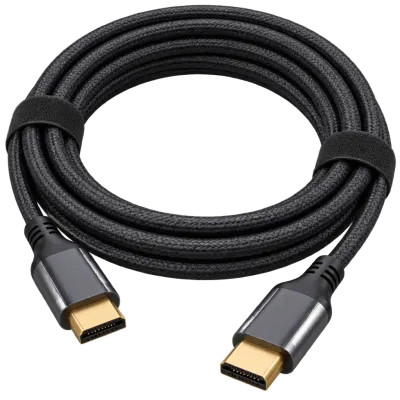 Matching productUltra High Speed HDMI cableAmazon →
02
eARC for sound
eARC, short for enhanced Audio Return Channel, lets a TV send high quality, multichannel audio, including formats such as Dolby Atmos, back down a single HDMI cable to a connected soundbar or AV receiver. This means you can plug all your sources into the TV directly and still get full quality sound through your external speakers, rather than routing every device through the sound system separately. Only one HDMI port on the TV supports eARC, and it is usually labelled in the manual. See sound and streaming for the wider picture.
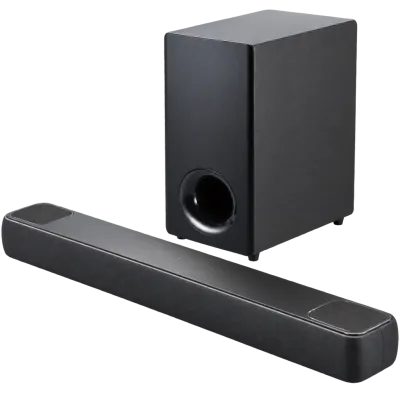 Matching productDolby Atmos soundbarAmazon →
03
Optical audio
An optical digital audio output, sometimes called Toslink, is an older way to send sound from the TV to a soundbar or receiver. It remains useful for older sound equipment without eARC support, though it typically cannot carry the most advanced object based audio formats at full quality, which is where eARC has an advantage on newer equipment.
04
USB ports
USB ports on a TV are commonly used for playing photos, music or video from a memory stick, for powering a streaming stick without a separate power adapter, or for connecting accessories such as a keyboard for easier text entry. Some TVs also use USB for software updates delivered by the manufacturer.
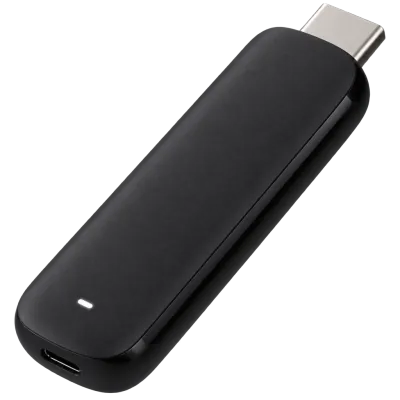 Matching product4K streaming stickAmazon →
05
Ethernet and Wi-Fi
A wired Ethernet connection generally gives a more stable and consistent network connection than Wi-Fi, which is useful for smooth streaming and reduces the chance of buffering during peak network usage in the household. Wi-Fi is more convenient where running a cable is impractical, and modern TVs support recent Wi-Fi standards that are fast enough for most streaming needs. If your TV sits far from the router and experiences frequent buffering, consider a network cable or a powerline adapter rather than only troubleshooting the Wi-Fi settings.
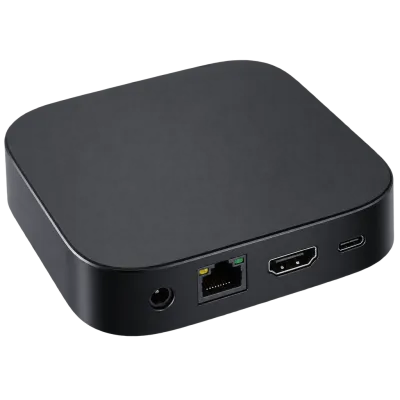 Matching productStreaming boxAmazon →
06
Tuners and CI+
The tuner is the component that receives broadcast television signals directly, without a separate receiver box. Standards differ by transmission method and by country: DVB-T2 for terrestrial aerial reception, DVB-S2 for satellite, and DVB-C for cable, with local variations such as the HEVC encoded DVB-T2 broadcasts used in Germany. A CI+ slot lets you insert a conditional access module and a subscription smart card directly into the TV to decode encrypted channels without a separate set top box, where your broadcaster supports this. Confirm which standards apply in your country before assuming a built in tuner will work, and see our antenna and reception guide for details.
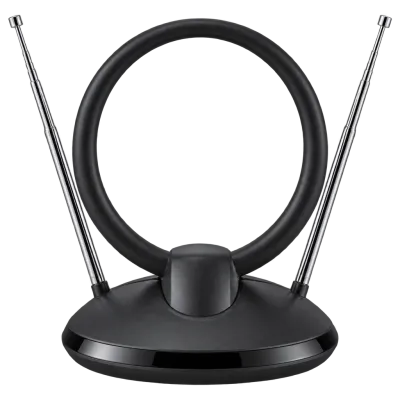 Matching productDVB-T2 antennaAmazon →
07
Cable management
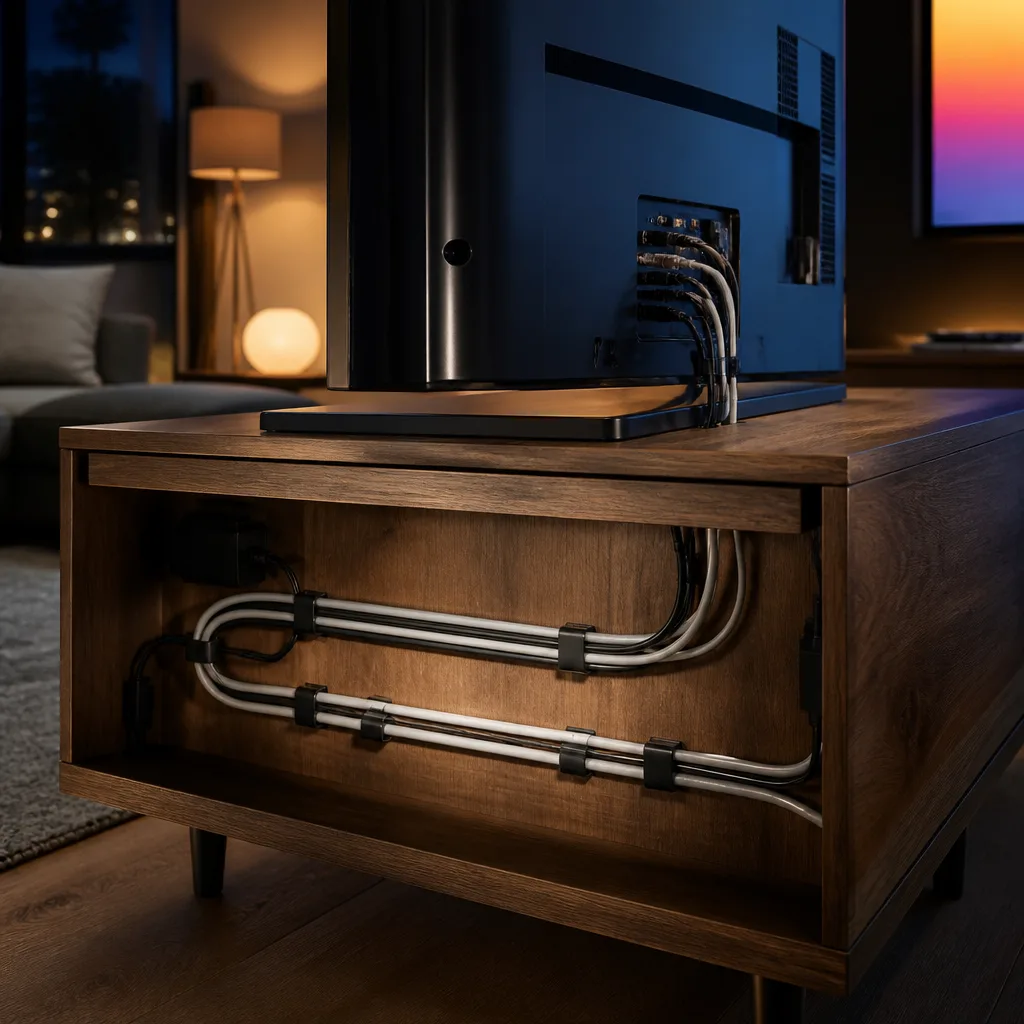
Before mounting or placing a TV, plan how cables will run. For a wall mounted set, an in wall cable channel or an external cable cover keeps HDMI, power and network cables tidy and out of sight. For a TV on a stand or unit, cable clips or a cable sleeve behind the furniture keep multiple device cables organised and make it easier to find the right port later. Label cables if you have several devices connected, since ports are rarely labelled clearly enough to identify a cable once it is plugged in.
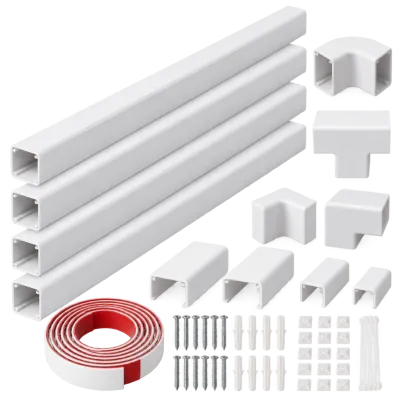 Matching productCable management kitAmazon →
08
First setup steps
- Unpack carefully and remove any transport locks or protective film from the screen.
- Position or mount the TV before connecting cables, so you are not working around a finished cable run.
- Connect power, then an aerial, satellite or cable line if you plan to use the built in tuner.
- Connect a network cable if using wired Ethernet, or prepare the Wi-Fi password if connecting wirelessly.
- Follow the on screen setup wizard, which typically covers language, network, tuner channel scan and picture mode.
- Connect external devices such as a games console, streaming stick and soundbar to their appropriate ports, using an eARC port for the soundbar if available.
- Enable HDMI-CEC if you want the TV and connected devices to control each other, and rename HDMI inputs to match the connected device for easier switching later.
 Matching productProjector screenAmazon →
09
HDMI-CEC
HDMI-CEC lets connected devices communicate and control each other over the HDMI connection, for example allowing a single remote to turn on the TV, switch to the right input and start a connected device, or letting the TV volume buttons control a soundbar instead of the TV's own speakers. Manufacturers often use their own brand name for this feature. It can be convenient but occasionally causes devices to turn on or switch inputs unexpectedly, so it is worth knowing where to turn it off in the settings menu if it misbehaves.
10
HDCP and copy protection
HDCP is a copy protection system built into HDMI connections that many streaming services and disc players require before they will show protected content at full resolution. It normally works invisibly in the background, but every device in the chain, including any switch, splitter or older AV receiver sitting between a source and the TV, needs to support a matching HDCP version. If a picture suddenly drops to a lower resolution, flickers or shows a black screen with certain apps or discs, an outdated or incompatible device somewhere in the chain is a common cause, and simplifying the connection path often resolves it.
11
Extending and switching HDMI
When a TV has fewer HDMI ports than you need, an HDMI switch lets several sources share one port, though it adds a small extra step of selecting the source on the switch as well as on the TV. For a TV positioned far from other equipment, an HDMI extender or a long, well shielded cable can maintain signal quality over distance, but very high bandwidth signals such as 4K at 120 Hz are more sensitive to cable length and quality than lower frame rate content, so check that any extender or long cable is rated for the bandwidth you plan to use.
12
Troubleshooting common connection issues
A source that is connected but shows no picture is often simply plugged into the wrong labelled input, so check the on screen input list first. A soundbar that loses sound intermittently over eARC can sometimes be resolved by updating the TV's software, since eARC compatibility has improved through firmware updates on many models. A network connection that drops during streaming is more often a Wi-Fi or router issue than a fault with the TV itself, so testing another device on the same network can help isolate the cause before assuming the television is at fault.
13
Frequently asked questions
Do I need HDMI 2.1 cables for every device?
No. Only devices that benefit from the extra bandwidth, mainly games consoles running high frame rate 4K content, need a full HDMI 2.1 rated cable and port. A streaming stick or basic set top box works fine on HDMI 2.0.
Why does my soundbar sound worse through optical than through eARC?
Optical audio cannot carry some of the newer, higher quality multichannel audio formats at full quality, while eARC has enough bandwidth to pass these through in full, including object based formats such as Dolby Atmos where supported.
Do I still need a set top box if my TV has a built in tuner?
Not necessarily, provided the built in tuner matches the transmission standard used in your country and any encrypted channels you want are supported through a CI+ slot or a separate subscription arrangement.
Should I use Wi-Fi or Ethernet for streaming?
Ethernet generally gives the most consistent connection and is worth using if a cable run is practical. Wi-Fi is convenient and usually sufficient, but can suffer during network congestion or with a weak signal far from the router.
 Matching productCompact soundbarAmazon →
Explore
Read next
 TV Panel Types Explained: LCD, QLED, Mini-LED, OLED and MoreAn overview of TV panel technologies, from LCD and QLED to OLED and Micro-LED, compared on blacks, brightness, viewing angle and burn-in ri…
 TV Buying Guide: How to Choose the Right TelevisionA practical, step by step guide that walks you through every decision in buying a television, from screen size to sound.
 TV Size Guide: Screen Sizes and Viewing DistanceA practical guide to translating screen diagonal into real dimensions and choosing the right size for your viewing distance and room.