
30 ideas
30 TV setup ideas for living room, bedroom, office and more
A collection of 30 TV setup ideas for living room, bedroom, gaming, home cinema, office and small spaces, with a short list of what you need and clear steps.
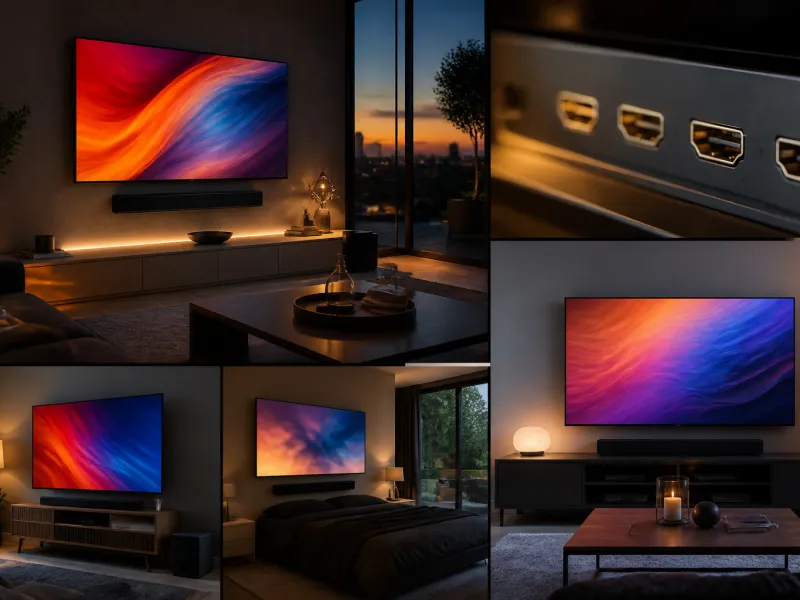
Choosing where and how to place a television changes how comfortable it is to watch, how easy it is to keep cables tidy, and how well the picture actually looks in your room. The right setup depends on the room, the distance you sit from the screen and what you mainly use the TV for, whether that is films, sport, games or video calls. Before you start, it helps to read our guide on screen size and viewing distance so the position you choose suits the size of screen you already own or plan to buy.
Below are 30 setup ideas grouped by room and purpose: living room, bedroom, gaming, home cinema, office and small spaces. Each one lists what you need and the steps to put it together, without any brand names or prices. For the cabling itself, from wall mounts to hiding cables in a wall channel, see our overview of connections and setup.
 01
01Wall mounted TV above a low console
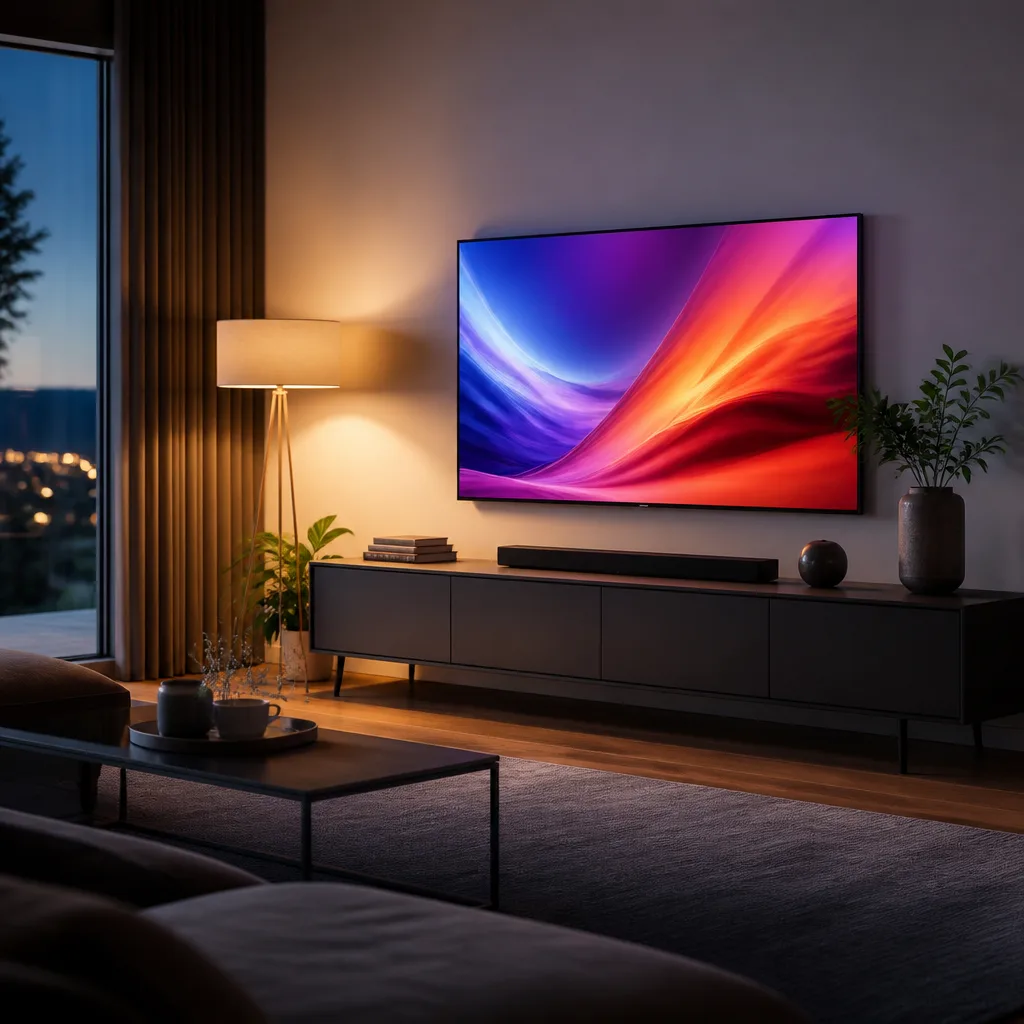
Mounting the TV on the wall above a low, slim console keeps the screen at a comfortable seated eye height while freeing up floor space for storage underneath. This works well in most living rooms because it suits a sofa placed a few metres away and keeps cables running neatly behind the console rather than across the floor. Choose a mount height so the centre of the screen sits roughly at eye level when you are seated, then route the power and any other cables down the wall or through the console at the back.
You need: wall mount, spirit level, stud finder, cable cover or channel
- Find and mark the wall studs at the planned height
- Attach the mount bracket to the wall and check it is level
- Attach the TV bracket plate to the back of the screen
- Hang the TV on the wall mount and secure it
- Route cables down to the console and tidy them with a cable cover
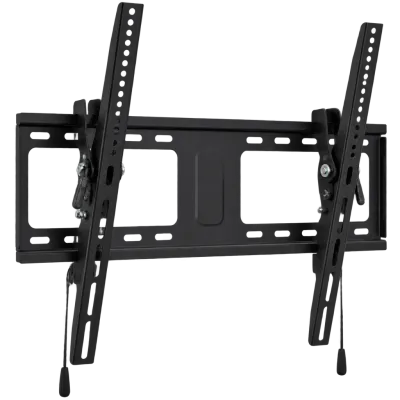 Matching productTilting wall mountAmazon →
 02
02Symmetrical seating around a central TV
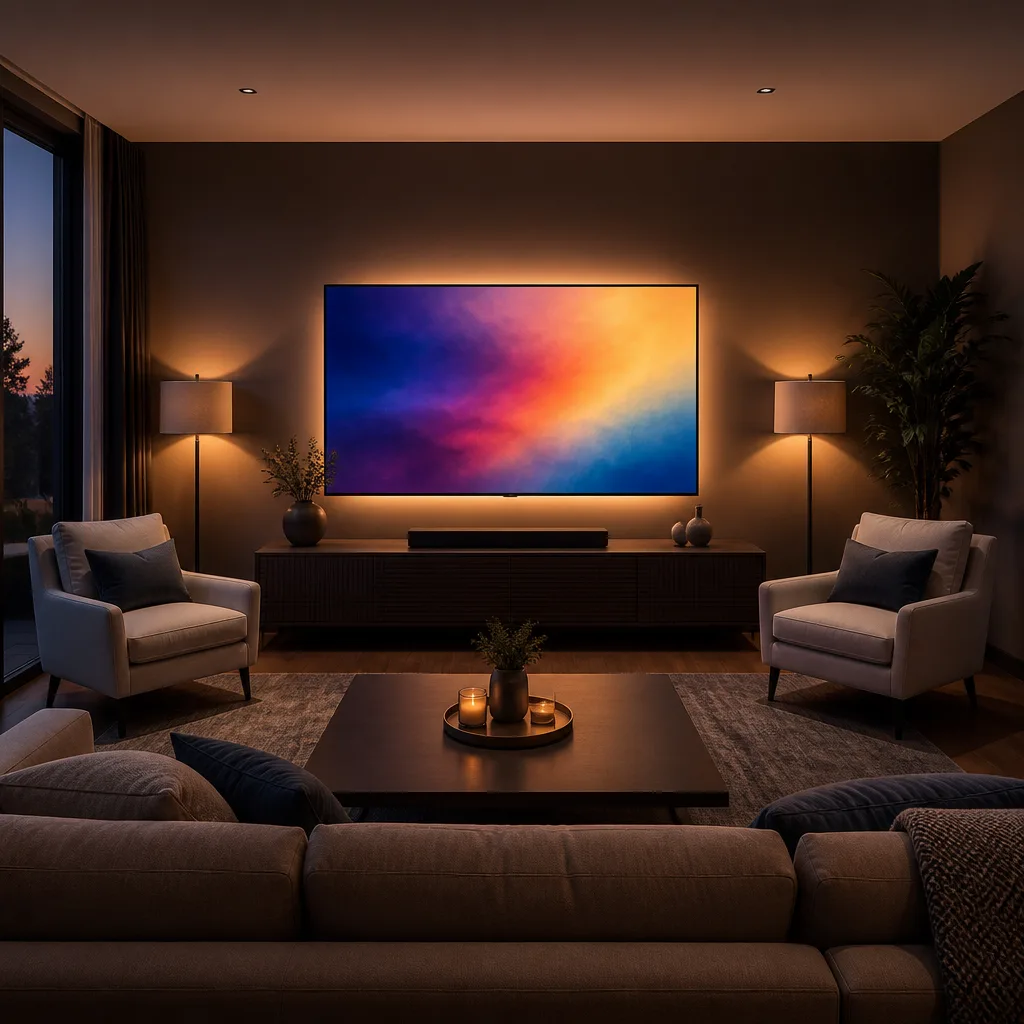
Arranging a sofa and two armchairs symmetrically around a centrally placed TV creates a balanced room that works equally well for one viewer or a full household. Centring the screen on the main seating wall avoids anyone having to watch from an awkward angle. This setup takes more planning than a simple mount because furniture, rug and TV position all need to line up, but the result is a room that looks organised and works for group viewing.
You need: TV, wall mount or stand, sofa, two armchairs, rug
- Measure the seating wall and find its centre point
- Mark the TV's centre position directly above that point
- Position the sofa facing the TV at a comfortable viewing distance
- Add armchairs symmetrically on either side of the sofa
- Place a rug under the seating area to anchor the layout
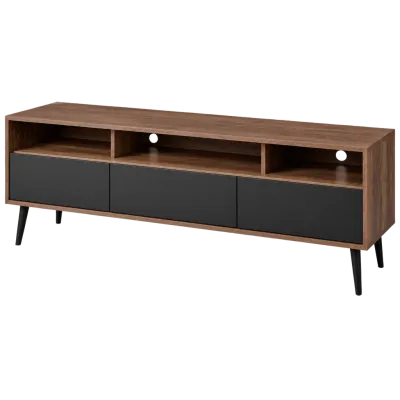 Matching productTV standAmazon →
 03
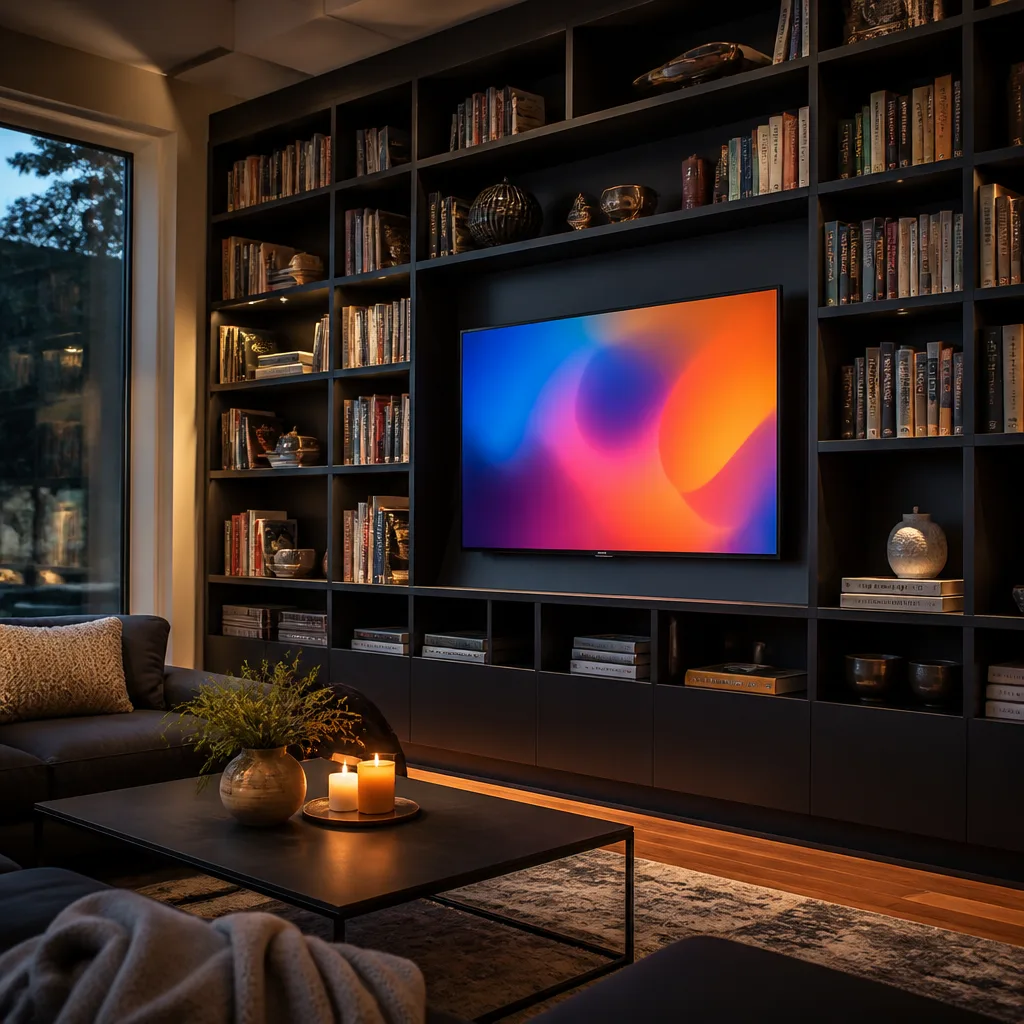
03TV integrated into a bookshelf wall
Building or buying a shelving unit with a recessed space for the TV lets the screen sit among books and objects rather than dominating a bare wall. This suits living rooms where the TV should feel like one part of the room rather than the main feature. Leave enough depth and ventilation space behind the TV opening so the screen does not overheat, and plan a route for cables through the back or side panels of the unit.
You need: shelving unit with a TV recess, TV, cable grommets, shelf accessories
- Measure your TV's width, height and depth before choosing a unit
- Check the recess has enough ventilation space around the screen
- Install or assemble the shelving unit against the wall
- Route cables through the unit's back panel or a grommet
- Place the TV in the recess and arrange shelves around it
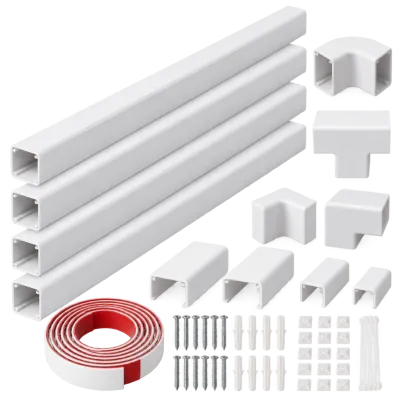 Matching productCable management kitAmazon →
 04
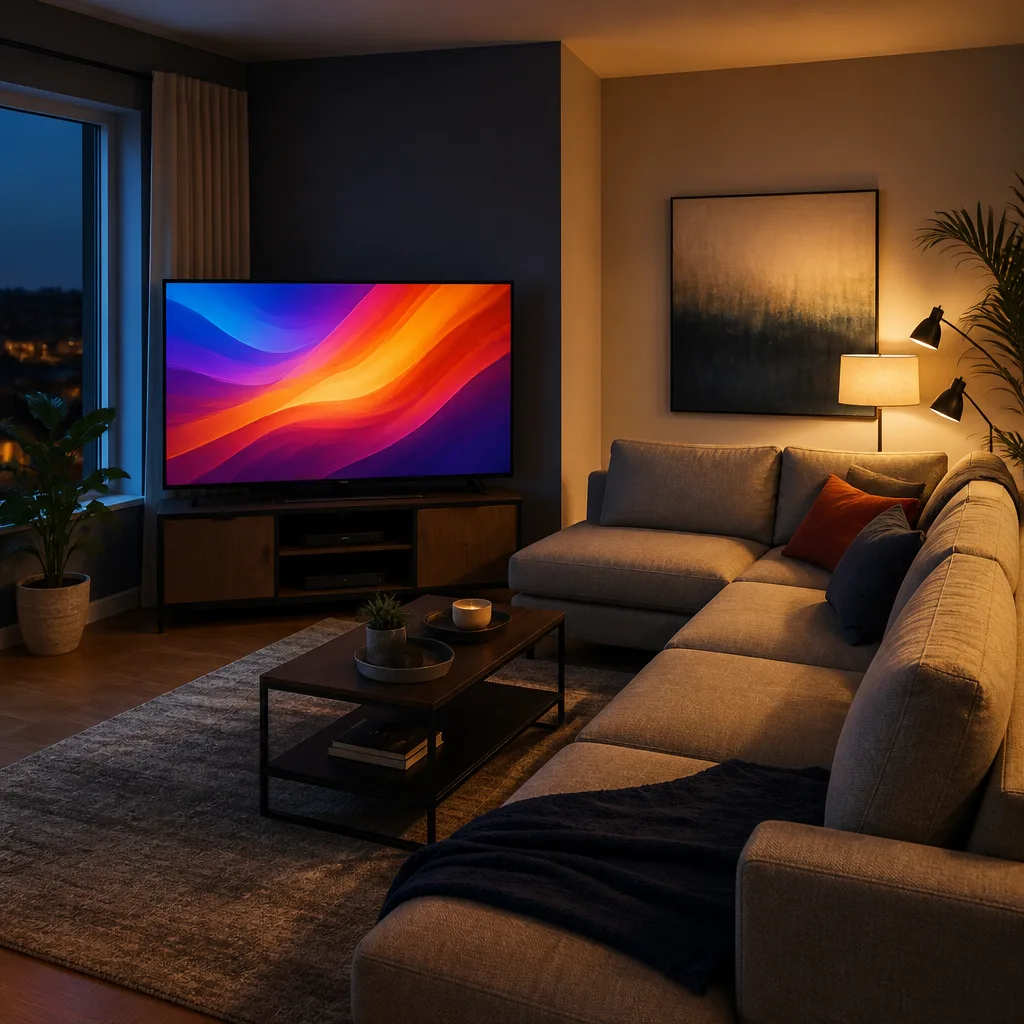
04Corner TV placement for an L shaped sofa
Placing the TV in a corner on a stand or corner mount suits rooms with an L shaped sofa, since it faces the natural centre of that seating arrangement rather than a straight wall. This is a practical option in rooms where the main straight wall is needed for a window or door. A corner mount with some swivel adjustment makes it easier to angle the screen towards both sections of the sofa evenly.
You need: TV, corner TV stand or swivel corner mount, L shaped sofa
- Identify the corner that faces the middle of the sofa
- Position the stand or mount bracket in that corner
- Place or hang the TV and adjust the swivel angle
- Sit in different spots on the sofa to check the viewing angle
- Adjust the angle again once furniture is in its final position
Matching productTV standAmazon →
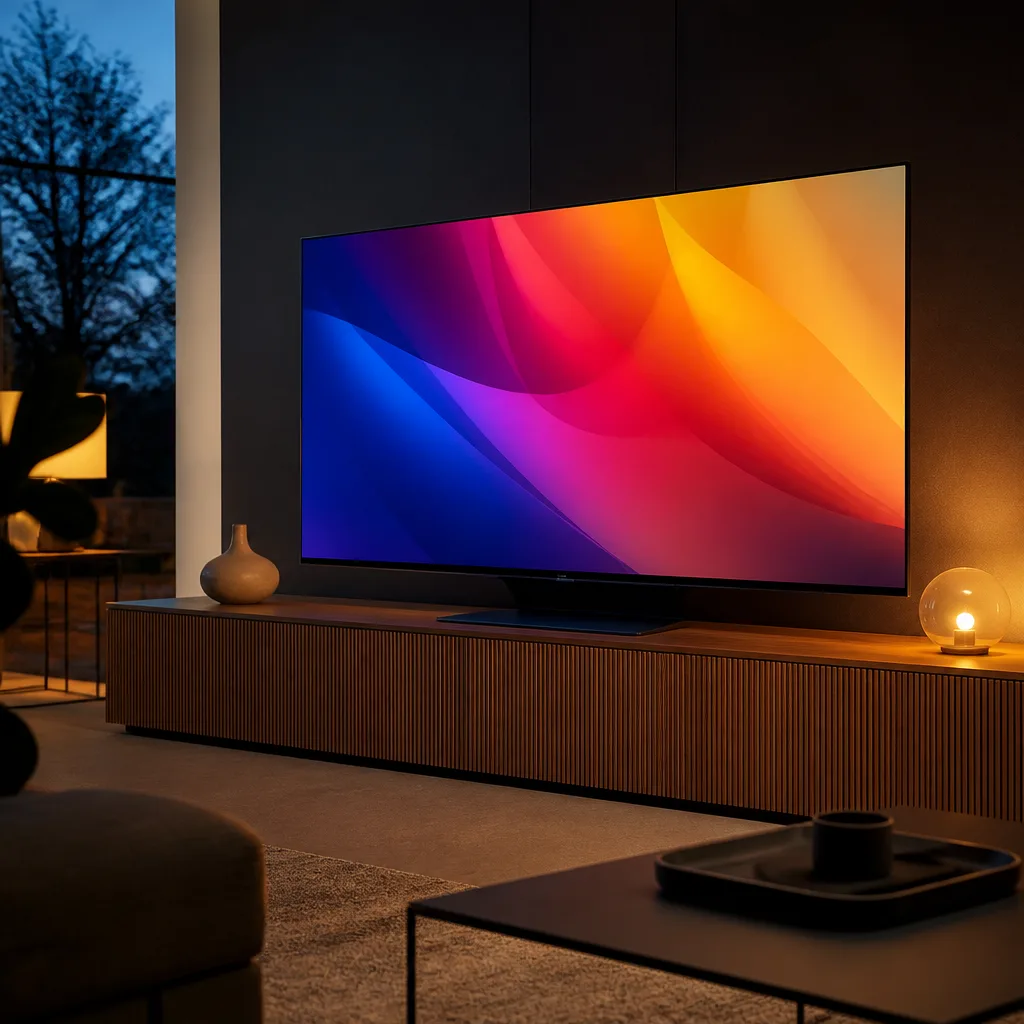
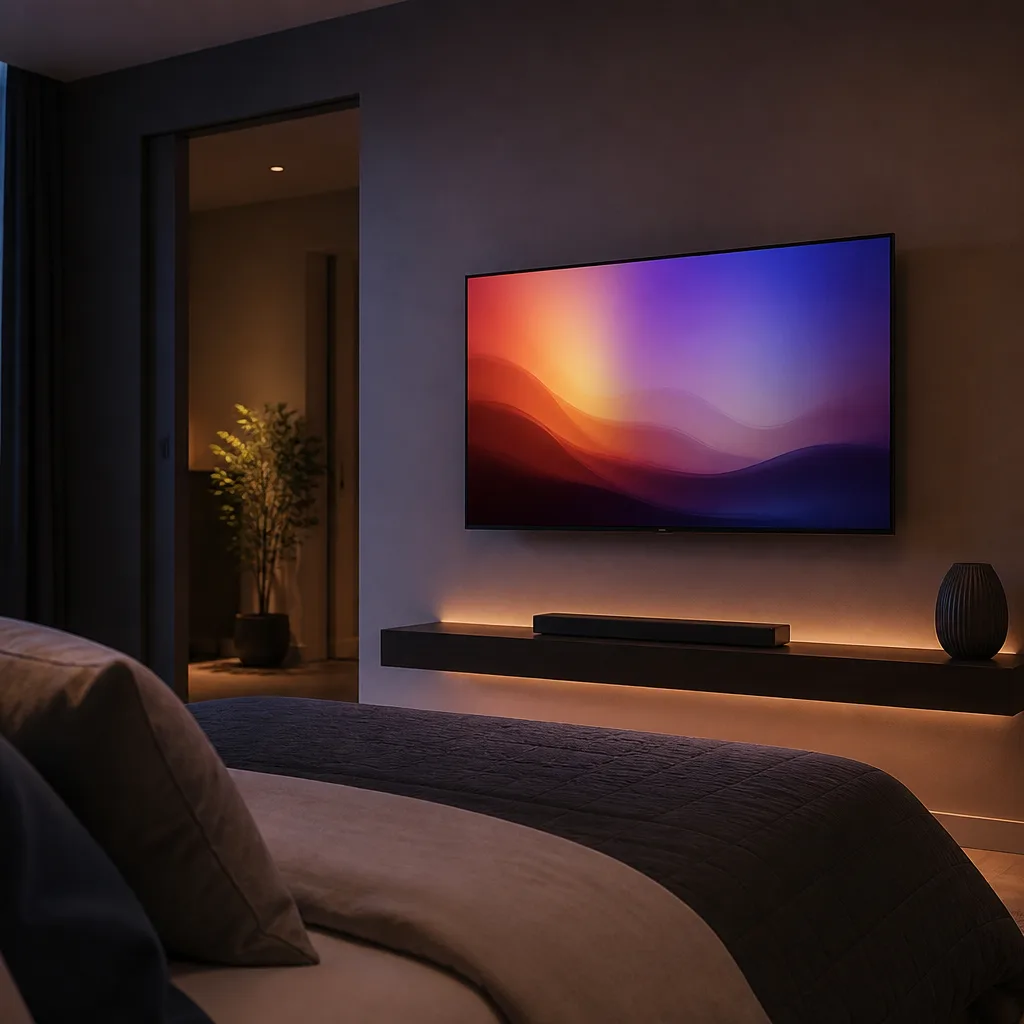 06
06Wall mounted TV opposite the bed
Mounting the TV on the wall directly opposite the bed, at a height roughly level with the eyes when lying propped up on pillows, gives a comfortable angle without straining your neck. This is the simplest bedroom setup and suits most standard bedroom layouts. Measure from the bed to the wall before choosing a screen size, since a bedroom is often a shorter viewing distance than a living room.
You need: TV, wall mount, stud finder, measuring tape
- Measure the distance from the bed to the opposite wall
- Mark the mount height level with eyes when propped up on pillows
- Locate wall studs and attach the mount bracket
- Hang the TV and check the viewing angle from the bed
- Tidy any visible cables along the wall or skirting board
Matching productTilting wall mountAmazon →
 07
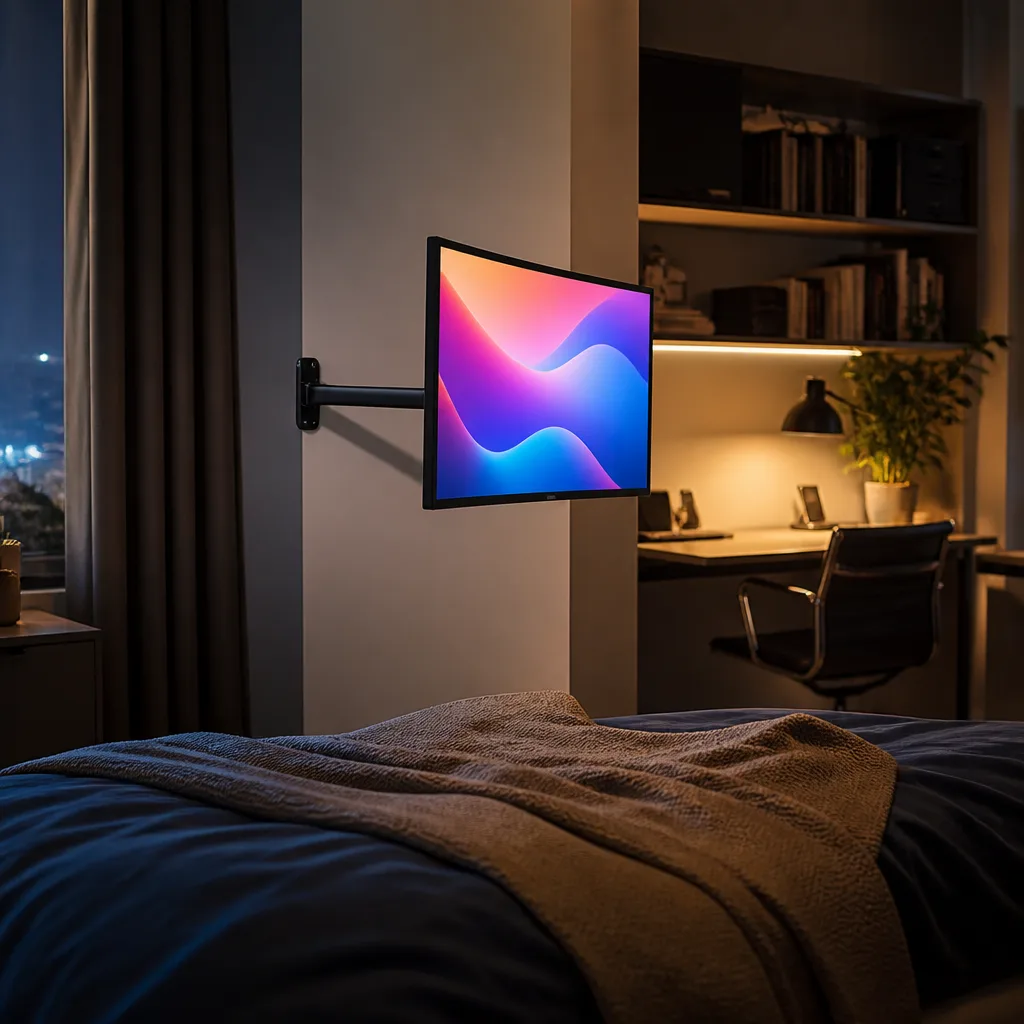
07Swivel mount TV for bed and desk viewing
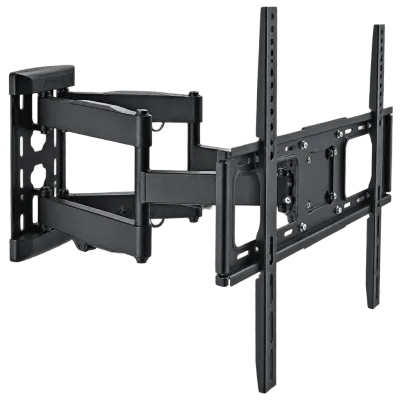
A swivel arm mount placed between the bed and a desk lets one TV serve both spots, turning towards the bed in the evening and towards the desk during the day. This suits smaller bedrooms that also function as a home office. Choose a mount with a long enough arm to reach a useful angle for both positions, and check the wall between the bed and desk can support the extended weight of the arm.
You need: swivel arm wall mount, TV, stud finder, spirit level
- Choose a wall position roughly between the bed and desk
- Locate studs and attach the swivel mount bracket
- Attach the TV to the mount arm
- Test the swivel range towards both the bed and the desk
- Adjust the arm's tension if the screen does not hold its angle
 Matching productFull motion wall mountAmazon →
 08
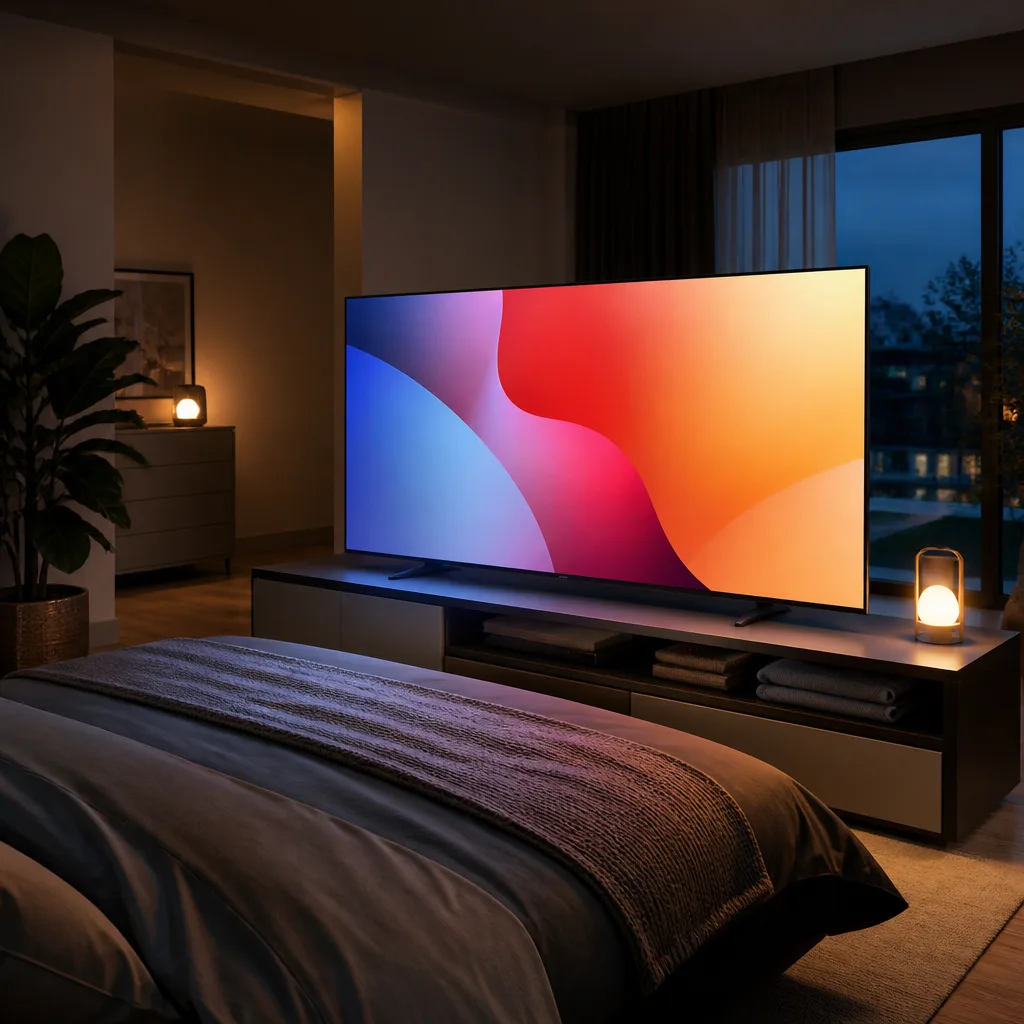
08Low footboard TV cabinet
A low cabinet at the foot of the bed gives the TV a stable base without wall mounting, while also providing storage for bedding or clothes. This suits bedrooms where drilling into the wall is not possible or not wanted. Keep the cabinet low enough that the screen sits below or level with your eyeline when lying down, otherwise you end up looking upward for long periods.
You need: low footboard cabinet, TV, cable management box
- Measure the space at the foot of the bed for the cabinet
- Place the cabinet so its top surface keeps the TV at a comfortable height
- Position the TV centrally on the cabinet
- Route cables to the nearest outlet and tidy them behind the cabinet
- Check the viewing angle from your usual sleeping position
Matching productCable management kitAmazon →
 09
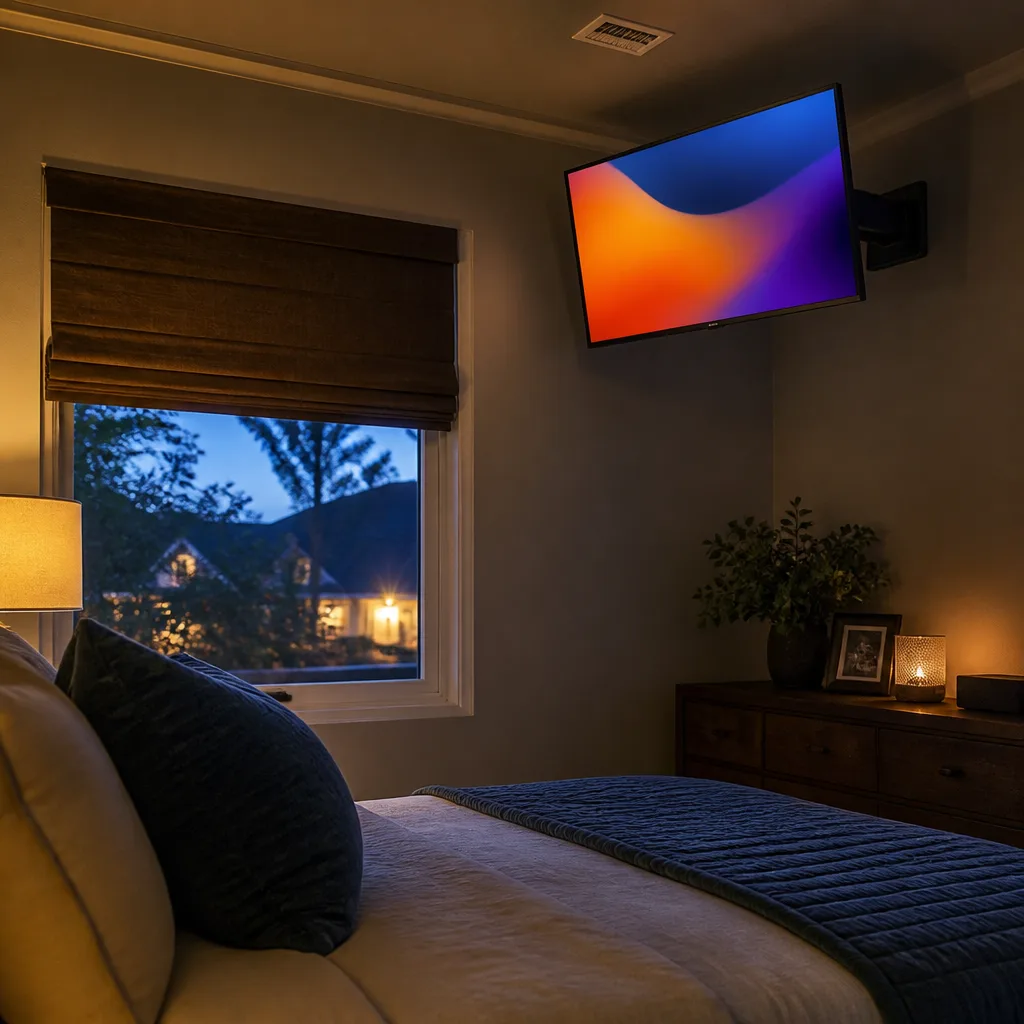
09Ceiling adjacent mount for a small bedroom
In a small bedroom where floor and wall space are both limited, mounting the TV high on the wall near the ceiling with an angled bracket keeps it out of the way while remaining viewable from the bed. This trades a slightly less relaxed viewing angle for extra usable space in a tight room. An angled or tilting mount is important here, since a fixed flat mount that high would point the screen straight ahead instead of down towards the bed.
You need: tilting wall mount, TV, stud finder, spirit level
- Confirm the wall has studs high enough for the planned position
- Attach the tilting mount bracket near the ceiling
- Hang the TV and set the downward tilt angle
- Lie on the bed and check the screen angle feels comfortable
- Adjust the tilt again if the picture looks distorted from below
 Matching product4K TV 43 inchAmazon →
 10
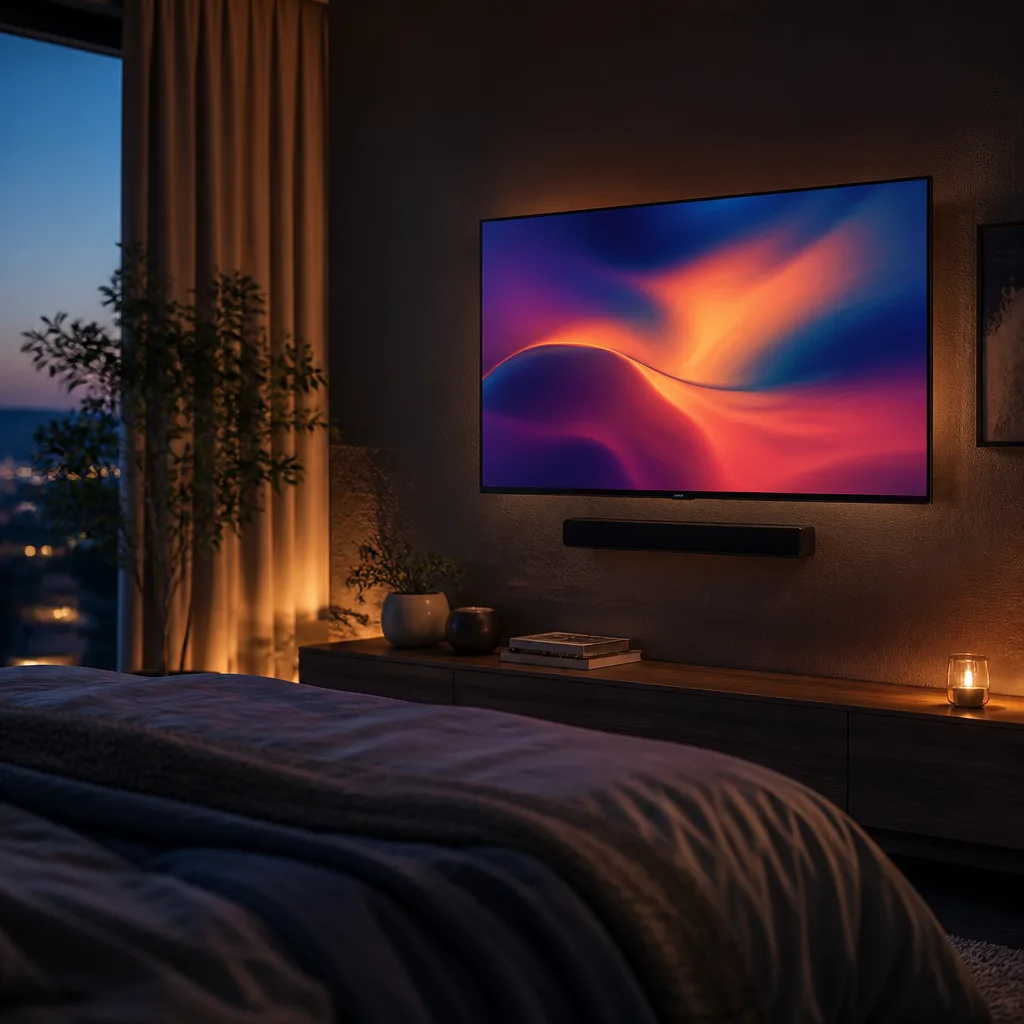
10Bedside soundbar setup for late night viewing
A compact soundbar mounted or placed just under the bedroom TV improves dialogue clarity at low volume, which matters more at night than raw loudness. This avoids disturbing others in the house while still sounding clear. Look for a soundbar with a night or dialogue mode if your model offers one, since it reduces loud effects while keeping speech audible.
You need: TV, compact soundbar, HDMI cable, small mounting bracket if needed
- Position the soundbar directly under the TV
- Connect the soundbar to the TV with an HDMI cable
- Set the TV's audio output to the soundbar in its settings
- Turn on a night or dialogue mode if the soundbar has one
- Test the volume level quietly before your first late night session
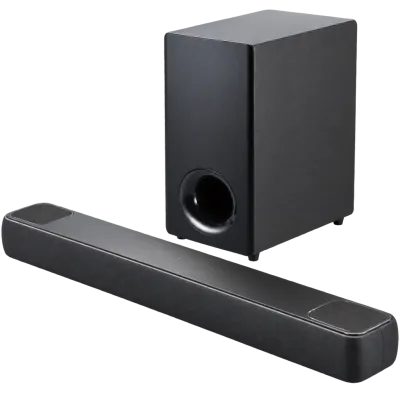 Matching productDolby Atmos soundbarAmazon →
 11
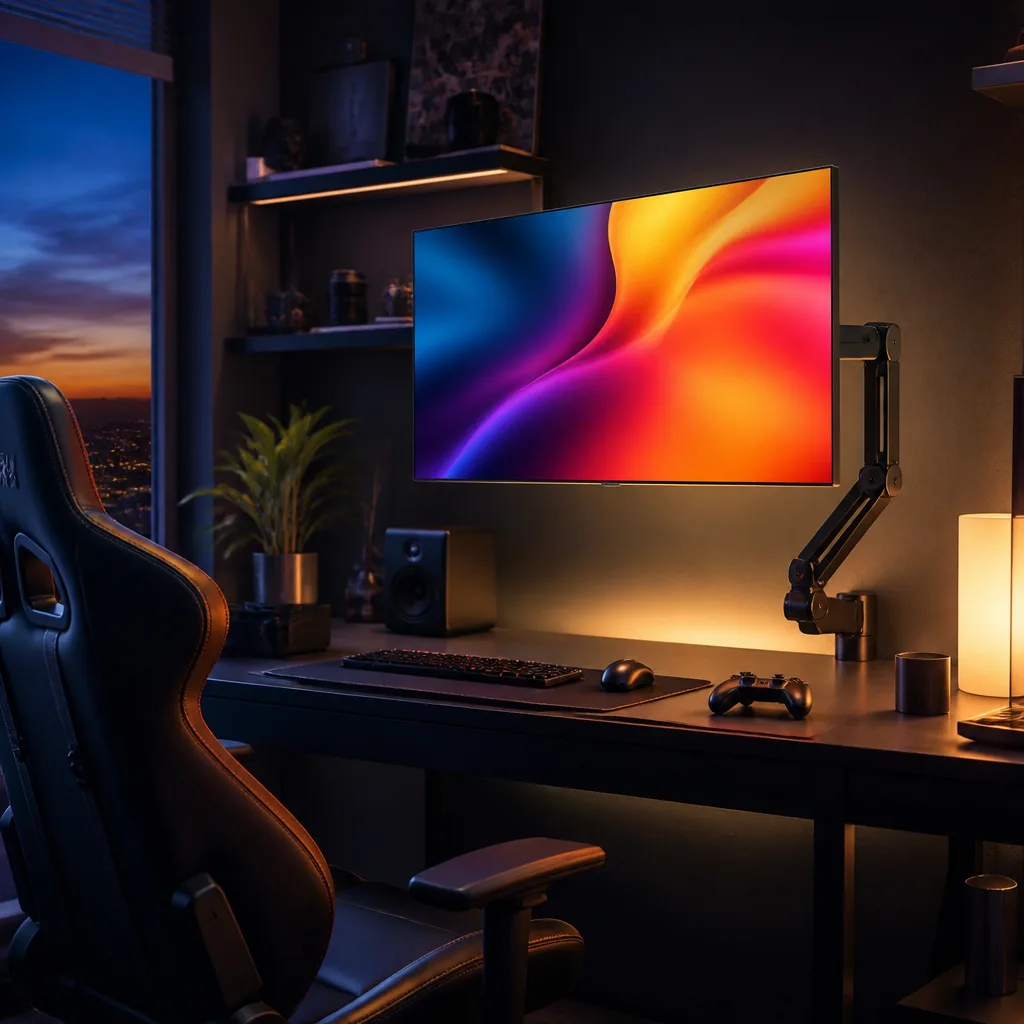
11Low latency gaming corner with monitor arm
Mounting a TV on a monitor arm at close range turns it into a large, low latency gaming display, useful for players who prefer a bigger screen than a typical monitor. Positioning it close to the chair keeps input feel similar to a normal desk setup. Check the TV supports a fast refresh rate and a dedicated game mode before relying on it for competitive play, since these reduce input lag noticeably.
You need: TV with a game mode, monitor arm rated for the TV's weight, gaming chair, gaming console or PC
- Confirm the monitor arm's weight rating covers your TV
- Attach the arm to the desk and fit the TV to its mount plate
- Position the arm so the screen sits at a close, comfortable distance
- Enable the TV's game mode in its picture settings
- Connect your console or PC and test input response before playing
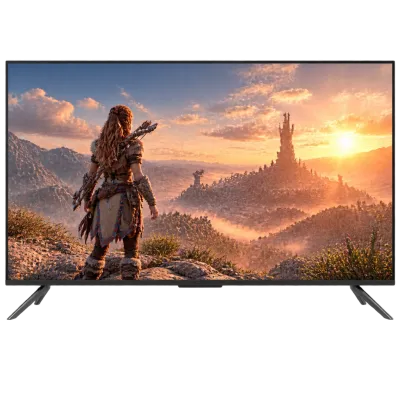 Matching product120 Hz gaming TVAmazon →
 12
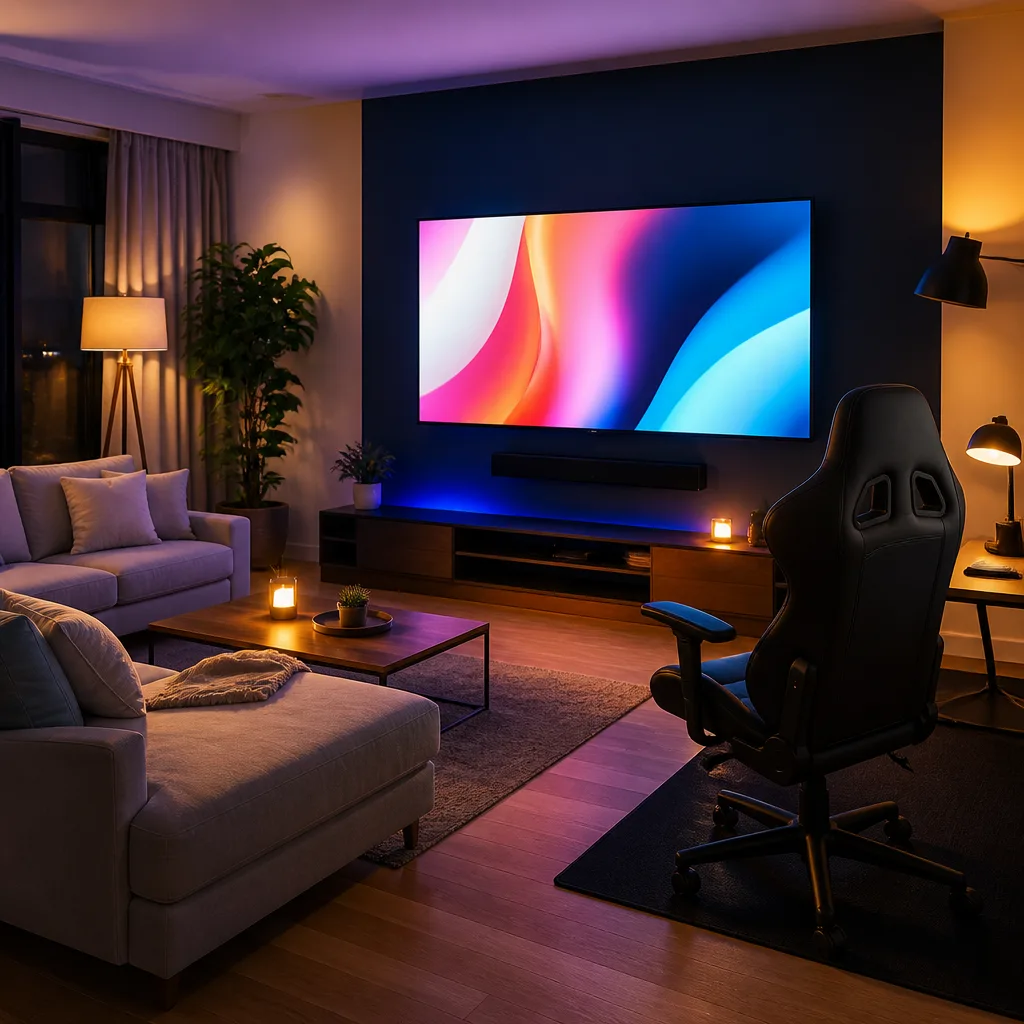
12Split living room gaming and viewing zone
Arranging a room so both a sofa and a dedicated gaming chair face the same TV lets the space switch between relaxed group viewing and focused gaming without moving furniture. A swivel mount helps angle the screen slightly towards whichever zone is in use. Keep the gaming chair close enough for quick reactions while the sofa stays further back for comfortable film watching.
You need: TV, swivel wall mount, gaming chair, sofa, game console or PC
- Decide on the sofa zone and the closer gaming chair zone
- Mount the TV on a swivel bracket that can angle towards each zone
- Place the sofa at a relaxed viewing distance
- Place the gaming chair closer, within easy reach of a controller
- Route console or PC cables to the gaming zone side
Matching product120 Hz gaming TVAmazon →
 13
13Console shelf with adjustable TV height
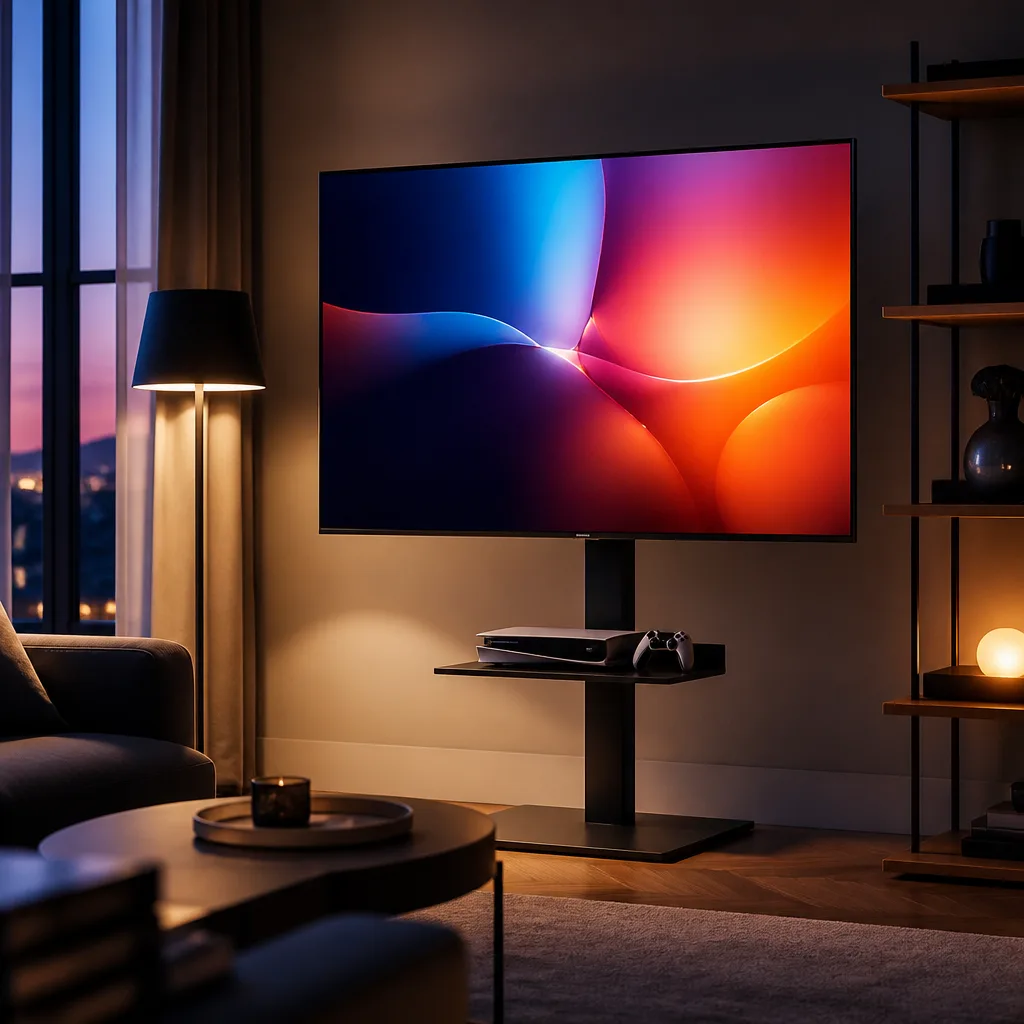
A small shelf under the TV for a game console, paired with a height adjustable mount, lets you fine tune the screen position for either a sofa or a closer gaming chair. This is a simple upgrade for anyone who already has a wall mounted TV. Keep the console shelf ventilated and within easy reach of the TV's HDMI ports to avoid long cable runs.
You need: TV, height adjustable wall mount, small shelf, game console
- Fit the height adjustable mount to the wall
- Attach a small shelf below the TV for the console
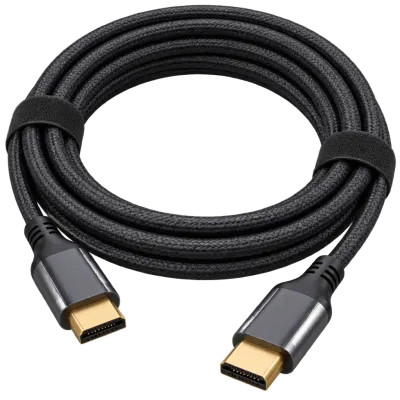
- Connect the console to the TV with a short HDMI cable
- Adjust the mount height for your usual seating position
- Test the height again after switching between seating spots
 Matching productUltra High Speed HDMI cableAmazon →
 14
14Multiplayer couch gaming layout
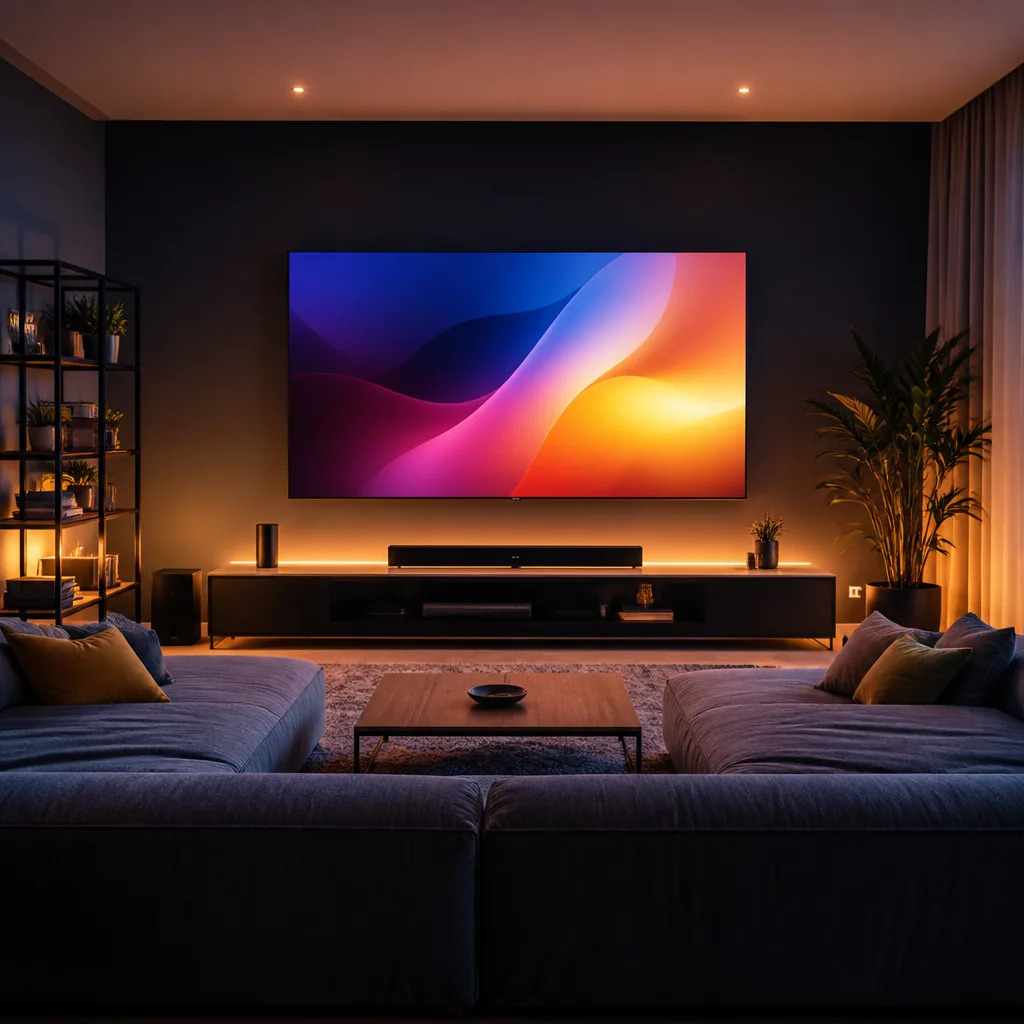
A wide sofa placed at a slightly greater distance than usual suits split screen or local multiplayer gaming, giving every player a similar viewing angle to the screen. Centring the TV on the sofa's midpoint keeps the picture fair for players sitting at either end. A larger screen size helps here since split screen effectively halves or quarters the visible detail for each player.
You need: TV, wide sofa, wall mount or stand, game console with extra controllers
- Position the sofa centred on the planned TV location
- Mount or place the TV at the sofa's horizontal centre
- Set the viewing distance a little further back than for single player use
- Connect the console and pair the extra controllers
- Check the screen is visible clearly from both ends of the sofa
Matching product120 Hz gaming TVAmazon →
 15
15Compact desk gaming TV setup
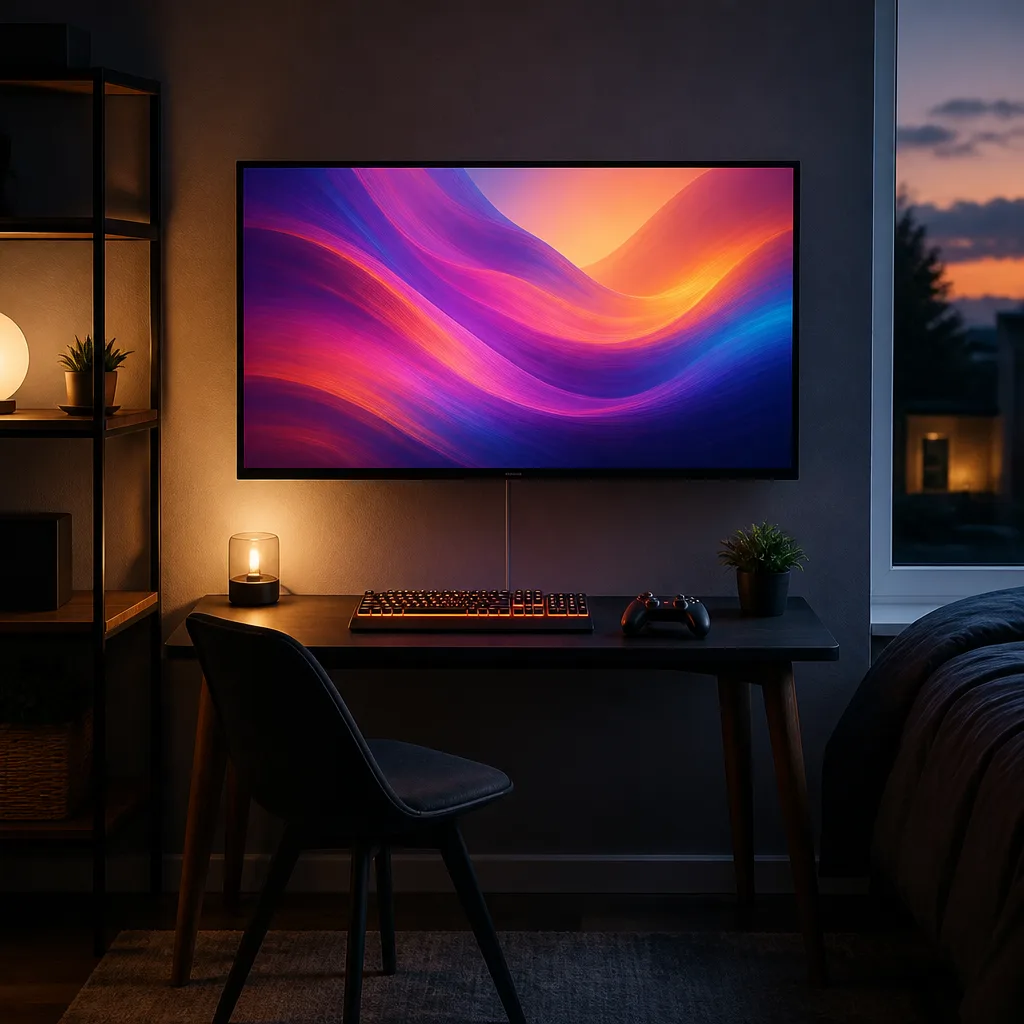
Using a TV instead of a monitor on a compact desk works well when the same screen also serves as the room's main television. Mounting it just above the desk keeps the setup compact while still allowing normal sofa or bed viewing from further back. Sitting close to a large screen means checking the TV's input lag and its lowest comfortable viewing distance before committing to this layout.
You need: TV with a game mode, desk mount or low wall mount, desk, gaming keyboard, controller
- Measure the desk's distance from the planned wall position
- Fit a mount that places the TV just above eye level at the desk
- Connect the console or PC and enable the game mode
- Arrange the keyboard, mouse or controller within easy reach
- Check the seating distance is comfortable for both desk and casual use
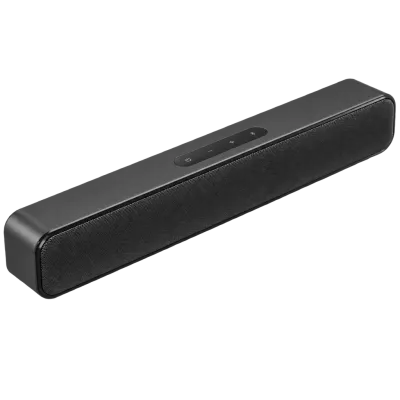 Matching productCompact soundbarAmazon →
 16
16Dedicated home cinema room with blackout
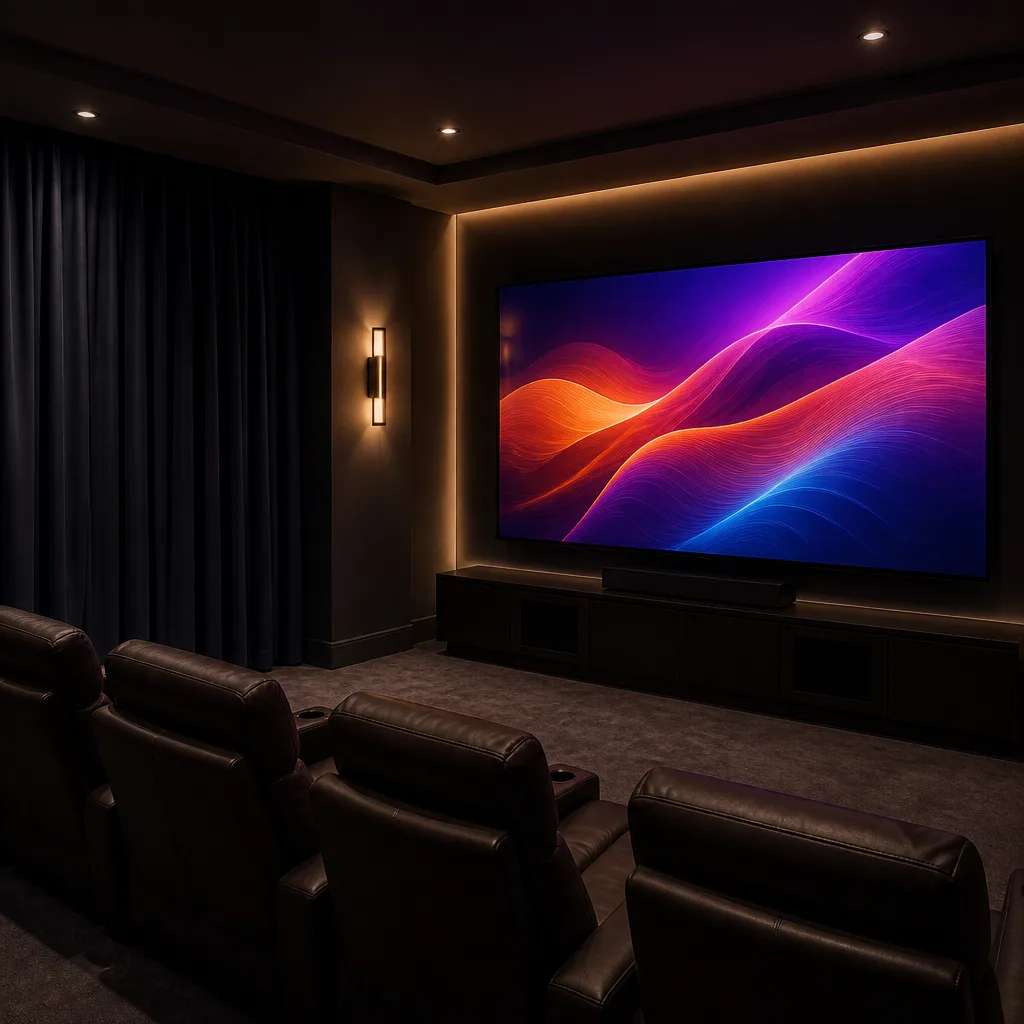
Converting a spare room into a dedicated cinema space means controlling light and sound as much as the screen itself. Blackout curtains or blinds remove daylight and reflections, which noticeably improves contrast and colour on any TV. Painting the walls a dark, matte colour reduces reflected light bouncing around the room, which further improves how deep the blacks on screen appear.
You need: TV or projector, blackout curtains or blinds, dark matte paint, cinema style seating, soundbar or speaker set
- Fit blackout curtains or blinds to every window in the room
- Repaint the walls in a dark matte colour if possible
- Position the TV or projector screen on the main wall
- Arrange seating at a distance that suits the screen size
- Set up the soundbar or speakers and test the room with the lights off
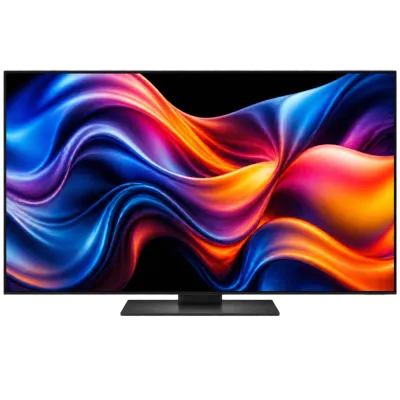 Matching productOLED TV 65 inchAmazon →
 17
17Cinema style riser seating
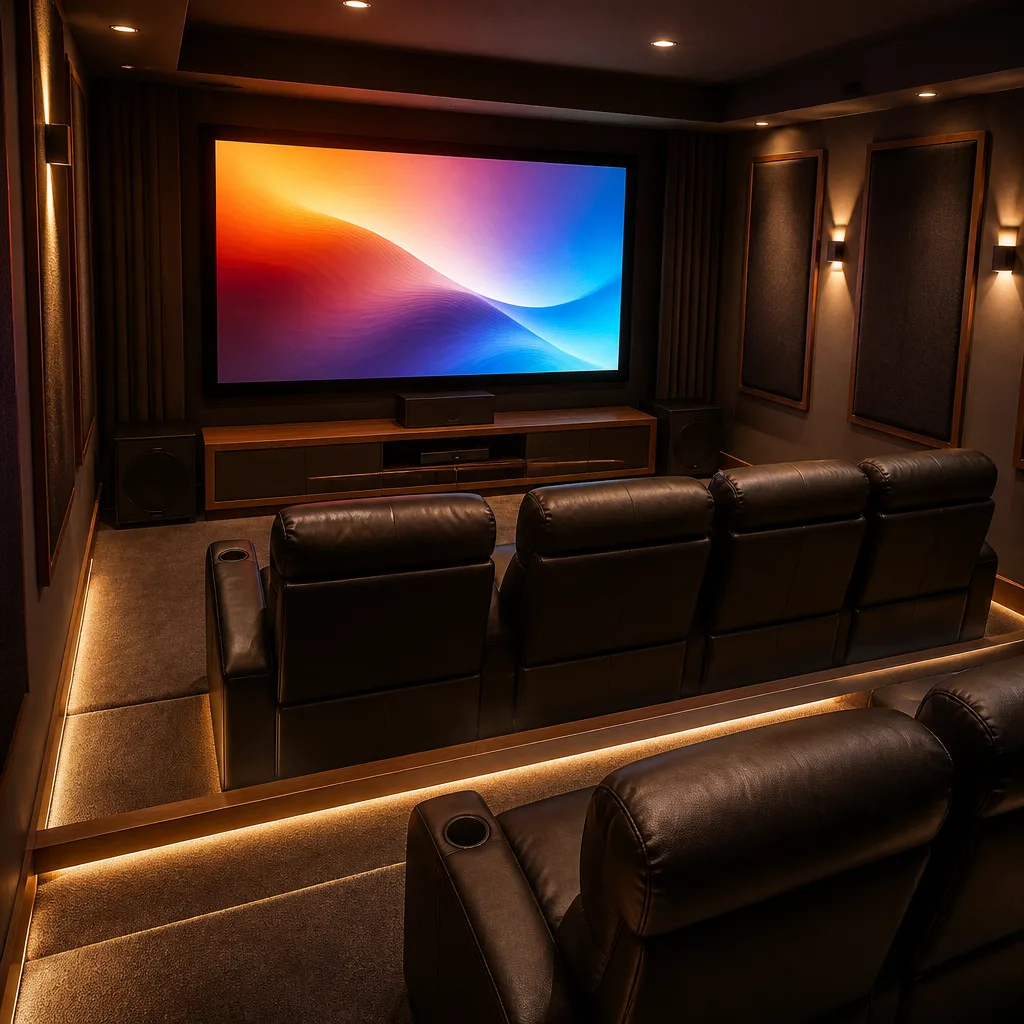
Building a low riser for the back row of seating gives everyone a clear line of sight to the screen, similar to stepped seating in a real cinema. This matters most in rooms with more than one row of chairs or a sofa behind an armchair. Even a modest riser height of a single step makes a real difference to sightlines when heads would otherwise line up directly in front of each other.
You need: riser platform or low stage kit, front and back row seating, TV, carpet or rug
- Build or install the riser platform for the back row
- Place the front row of seating on the floor level
- Place the back row of seating on the riser
- Position the TV so both rows have a clear, centred view
- Add a rug or carpet over the riser edge for safety and comfort
Matching productOLED TV 65 inchAmazon →
 18
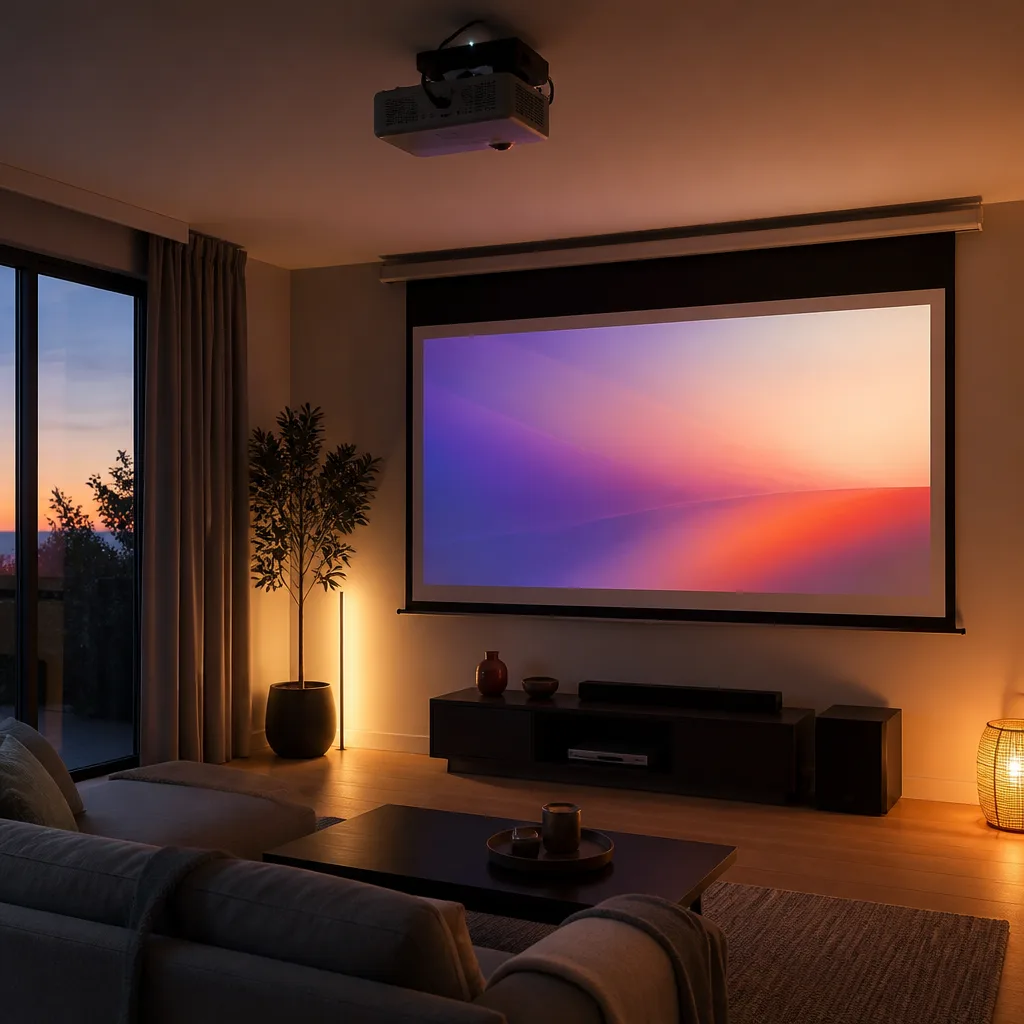
18Projector and screen pull down cinema corner
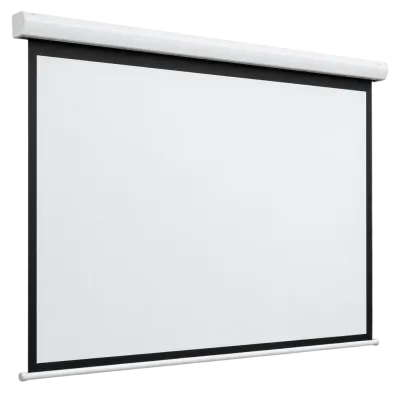
A ceiling mounted projector paired with a pull down screen turns a corner of a room into an occasional cinema without a permanently visible large screen. When not in use, the screen retracts and the wall returns to normal. Darkening the room as much as possible matters even more for a projector than for a TV, since projected images are more sensitive to ambient light.
You need: projector, pull down screen, ceiling mount, HDMI cable, blackout curtains
- Decide on the screen position and mount the pull down unit above it
- Mount the projector on the ceiling at the correct throw distance
- Connect the projector to a source with an HDMI cable
- Lower the screen and align the projected image to fit it
- Close curtains or blinds before testing the picture in daylight
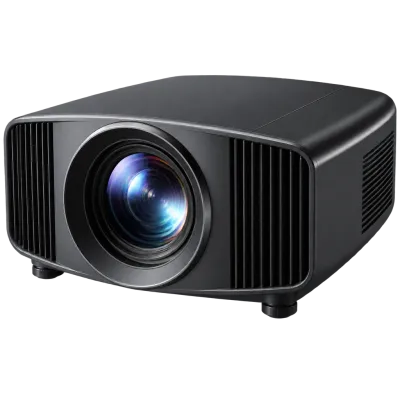 Matching product4K projectorAmazon →
 19
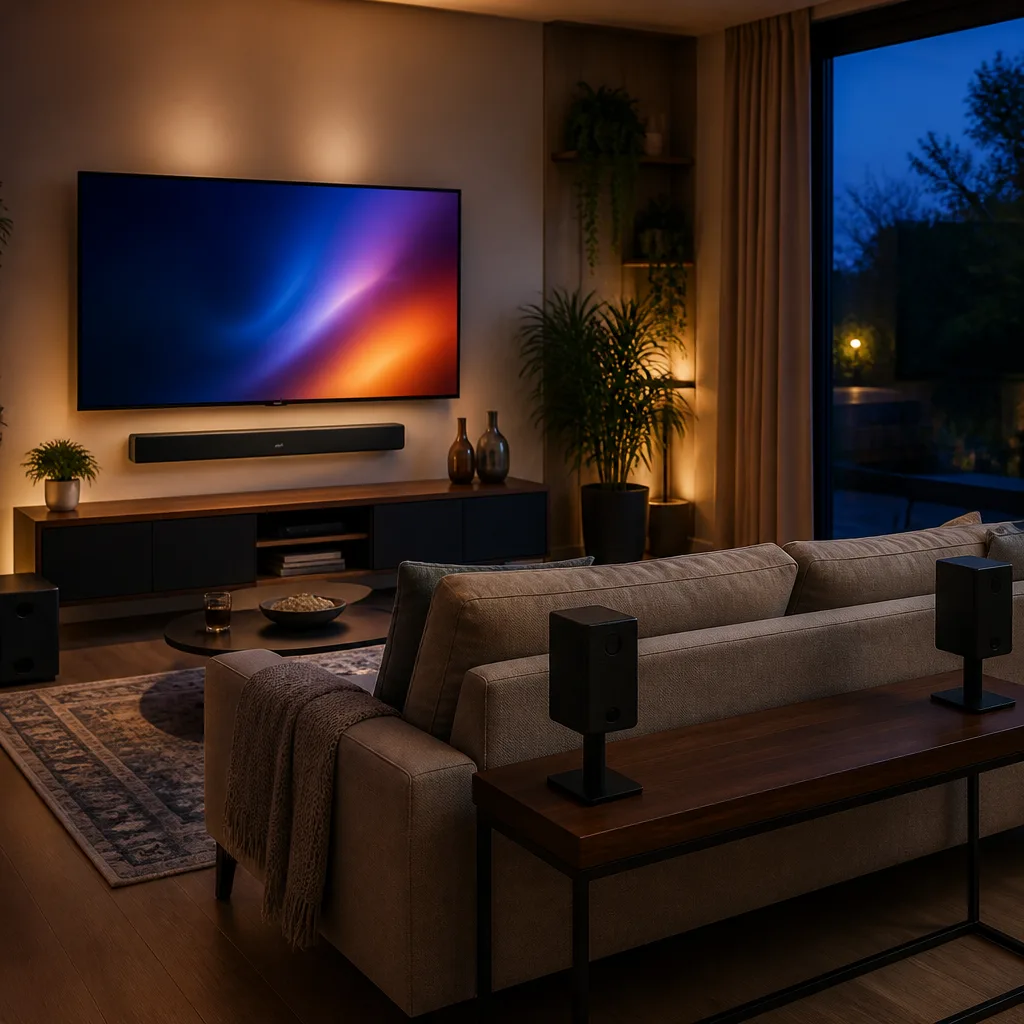
19Cinema soundbar and rear speaker layout
Adding rear speakers to a soundbar setup, positioned behind or beside the seating area, brings a more enveloping sound for films without a full surround system. Many soundbars support a small set of matching rear speakers or a subwoofer. Keep the rear speakers at roughly ear height and pointed towards the seating area rather than the wall for the clearest effect.
You need: soundbar with rear speaker support, rear speaker pair, subwoofer if included, speaker stands or wall mounts
- Position the soundbar directly under or in front of the TV
- Place the rear speakers behind or beside the main seating
- Connect or pair the rear speakers according to the soundbar's instructions
- Position the subwoofer if included, testing a few spots for even bass
- Run any automatic sound calibration the soundbar offers
Matching productDolby Atmos soundbarAmazon →
 20
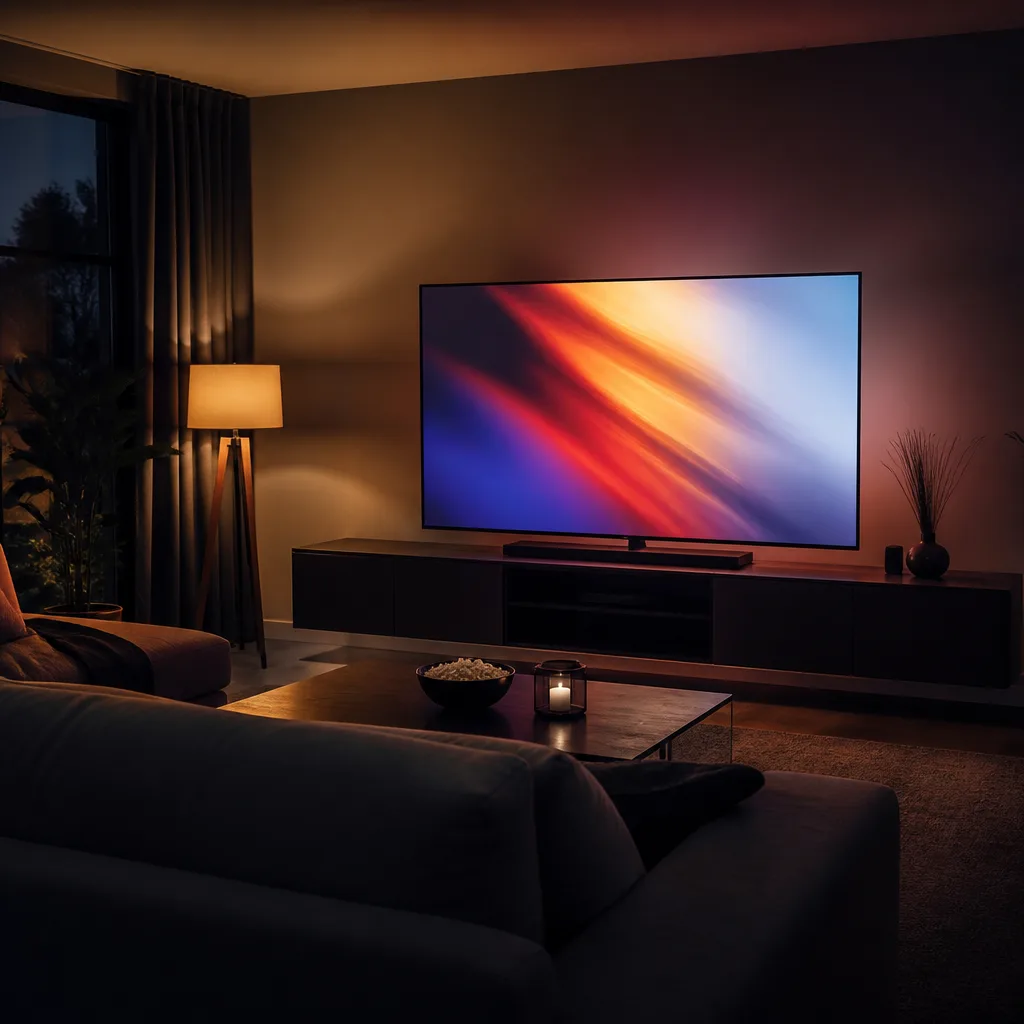
20Movie night living room dim lighting setup
Turning off overhead lighting and relying on one or two dim lamps well away from the screen reduces reflections and makes colours look richer without any equipment changes. This is the simplest way to improve picture quality for an occasional movie night. Position any remaining lamp behind or beside the seating rather than facing the screen, so its light does not reflect directly off the TV.
You need: TV, one or two dimmable lamps, blackout curtains if the room has bright windows
- Turn off the main overhead light in the room
- Switch on one or two lamps positioned away from the screen
- Dim the lamps to a low, comfortable level
- Close curtains or blinds if daylight is still reaching the screen
- Check the picture for reflections and adjust lamp position if needed
 Matching productProjector screenAmazon →
 21
21Single monitor TV as secondary display
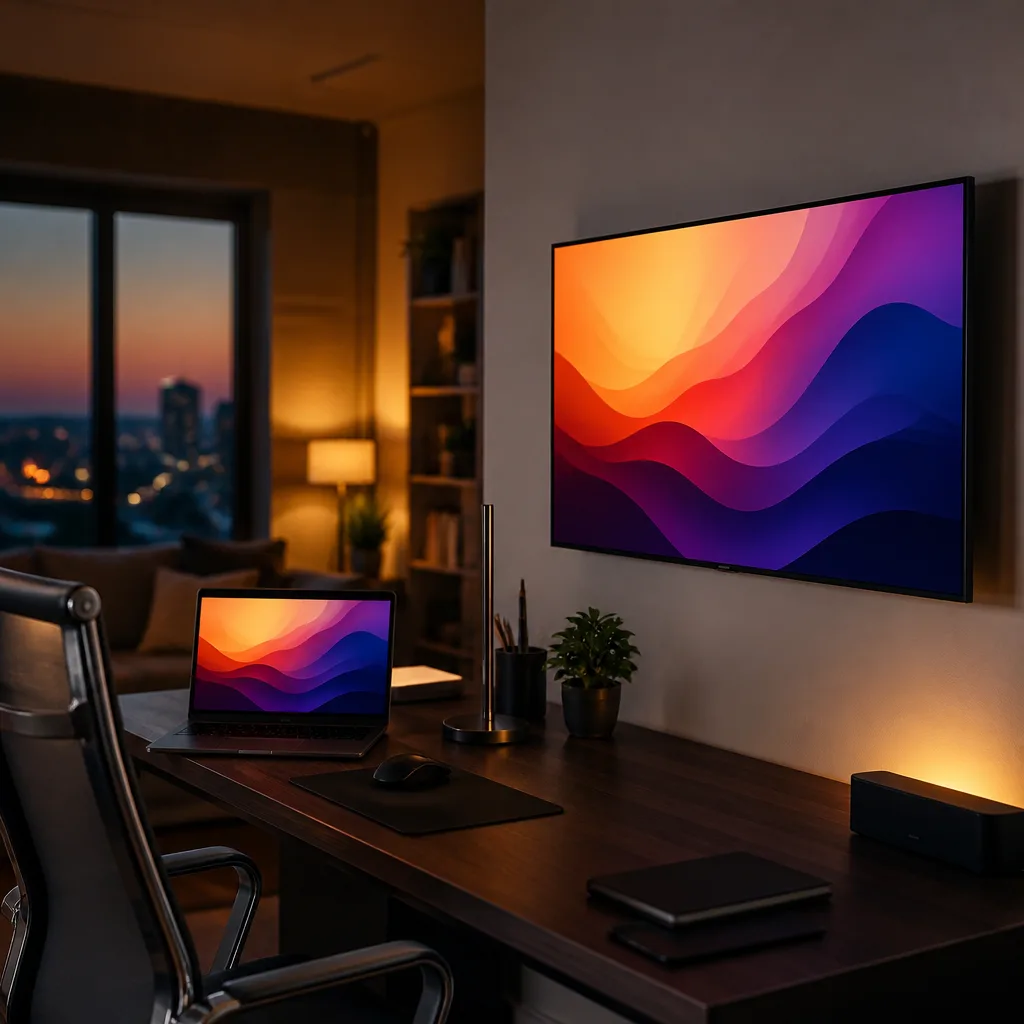
A TV mounted beside a desk can act as a large secondary display for a laptop, giving extra space for reference material, email or a video call window. Because it sits beside rather than directly in front, it does not compete with the main monitor for attention. Check your laptop's video output before buying any cable, since not every laptop supports driving an external display at full resolution.
You need: TV, wall mount, HDMI or USB-C video cable, laptop or desktop computer
- Mount the TV on the wall to the side of the main desk position
- Connect the TV to the computer with an HDMI or USB-C cable
- Set the display to extend rather than mirror the main screen
- Arrange windows so reference material sits on the TV
- Adjust the TV's picture mode to a neutral setting for text and documents
Matching productUltra High Speed HDMI cableAmazon →
 22
22Conference room wall TV for video calls
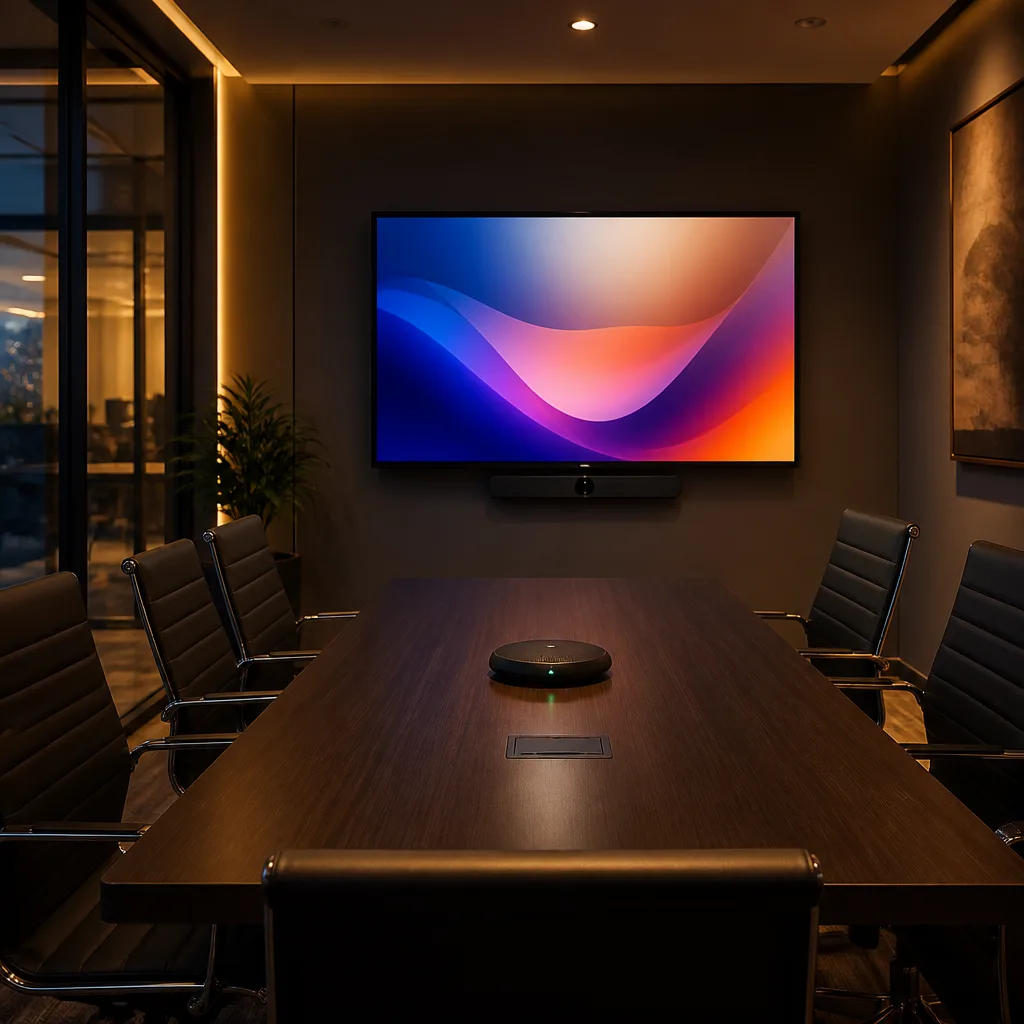
A wall mounted TV at the front of a small meeting room, connected to a camera and microphone setup, lets remote participants see and hear everyone clearly during video calls. Centring it on the table keeps the view natural for both the room and remote attendees. Position the camera as close to the TV as possible so people in the room appear to be looking towards remote participants rather than off to one side.
You need: TV, wall mount, video conferencing camera, microphone or speakerphone, HDMI or network cable
- Mount the TV centrally on the wall at the front of the room
- Position the video camera close to the TV, ideally just above or below it
- Connect the camera and microphone to the meeting room computer
- Connect the computer to the TV with an HDMI or network cable
- Test a short call to check camera framing and audio levels
Matching productUltra High Speed HDMI cableAmazon →
 23
23Standing desk with a wall mounted TV screen
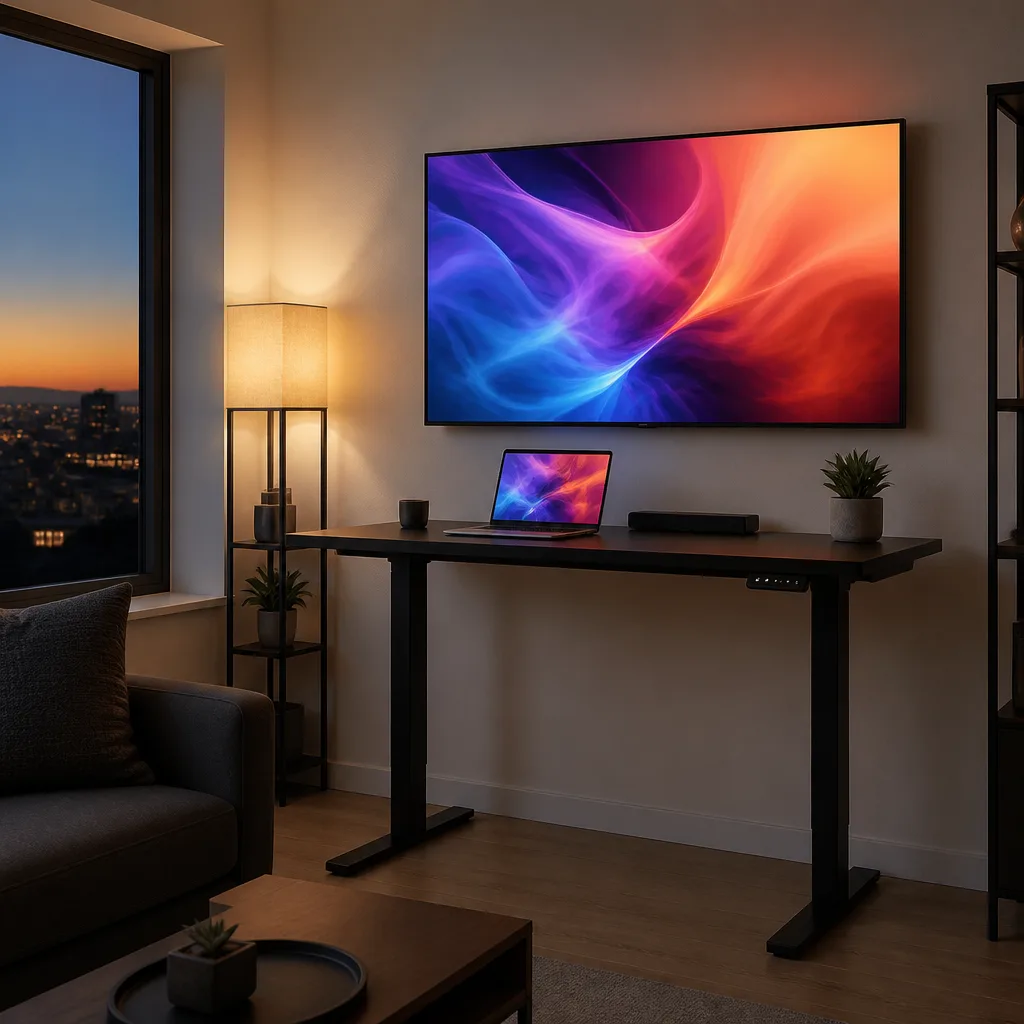
Mounting a TV at standing desk height, rather than sitting height, keeps a large display comfortable to use whether the desk is raised or lowered. A height adjustable or tilting mount lets the screen angle follow the desk position. Measure both your sitting and standing eye height before fixing the mount position, so the screen works reasonably well at either desk height.
You need: TV, tilting or height adjustable wall mount, standing desk, HDMI or USB-C cable
- Measure your eye height when the desk is both raised and lowered
- Choose a mount height that suits both positions reasonably well
- Attach the mount to the wall and hang the TV
- Connect the TV to the computer with a video cable
- Adjust the tilt angle after testing both sitting and standing use
Matching productTilting wall mountAmazon →
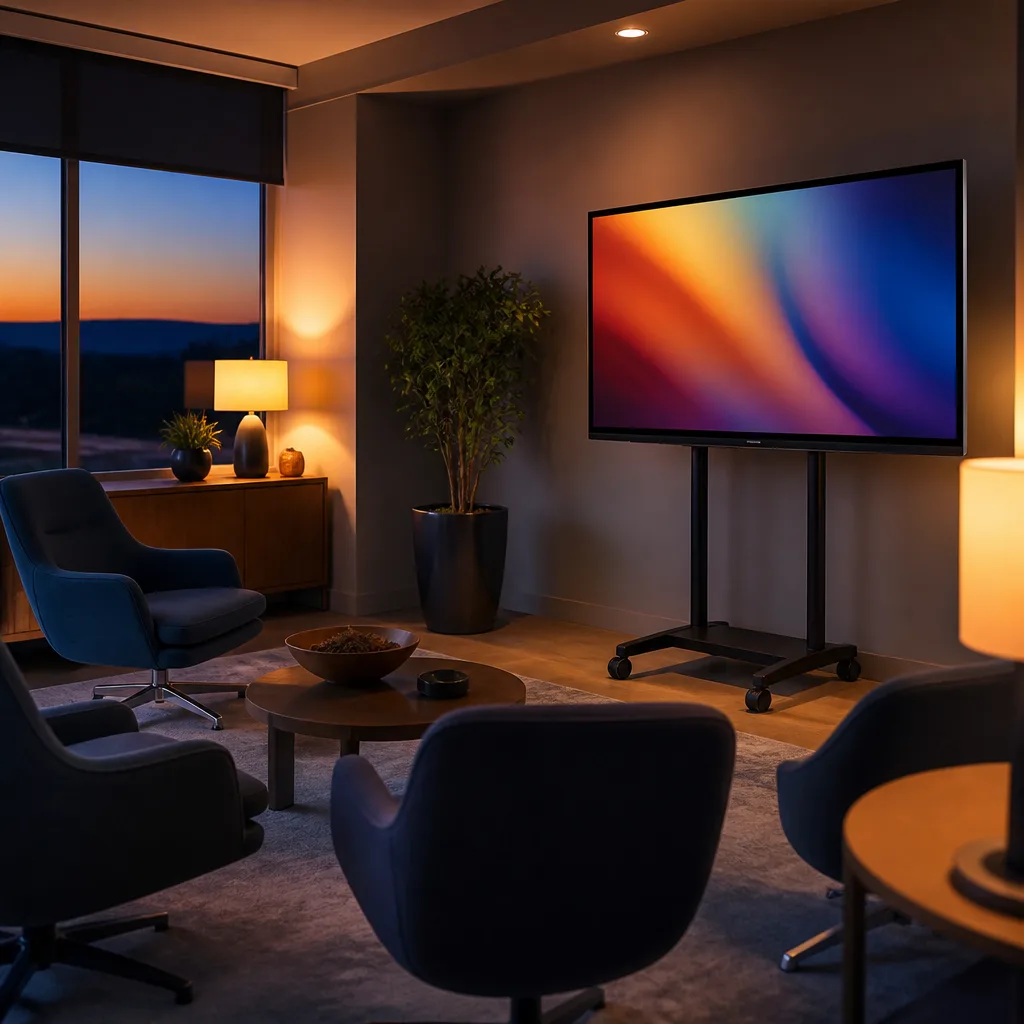 24
24Home office presentation corner
A TV on a rolling stand, kept in a corner of a home office, can be wheeled out whenever you need to present to a small group or run a training session in person. This avoids permanently dedicating wall space to a screen that is only occasionally needed. Choose a stand with a stable, weighted base if the TV will be moved often, since a lightweight stand can tip when wheeled over an uneven floor.
You need: TV, rolling TV stand, HDMI cable, laptop
- Assemble the rolling stand and secure the TV to it
- Store the stand in a corner when not in use
- Wheel it out and position it facing the seating area when needed
- Connect a laptop with an HDMI cable for the presentation
- Lock the stand's wheels once it is in its final position
Matching productUltra High Speed HDMI cableAmazon →
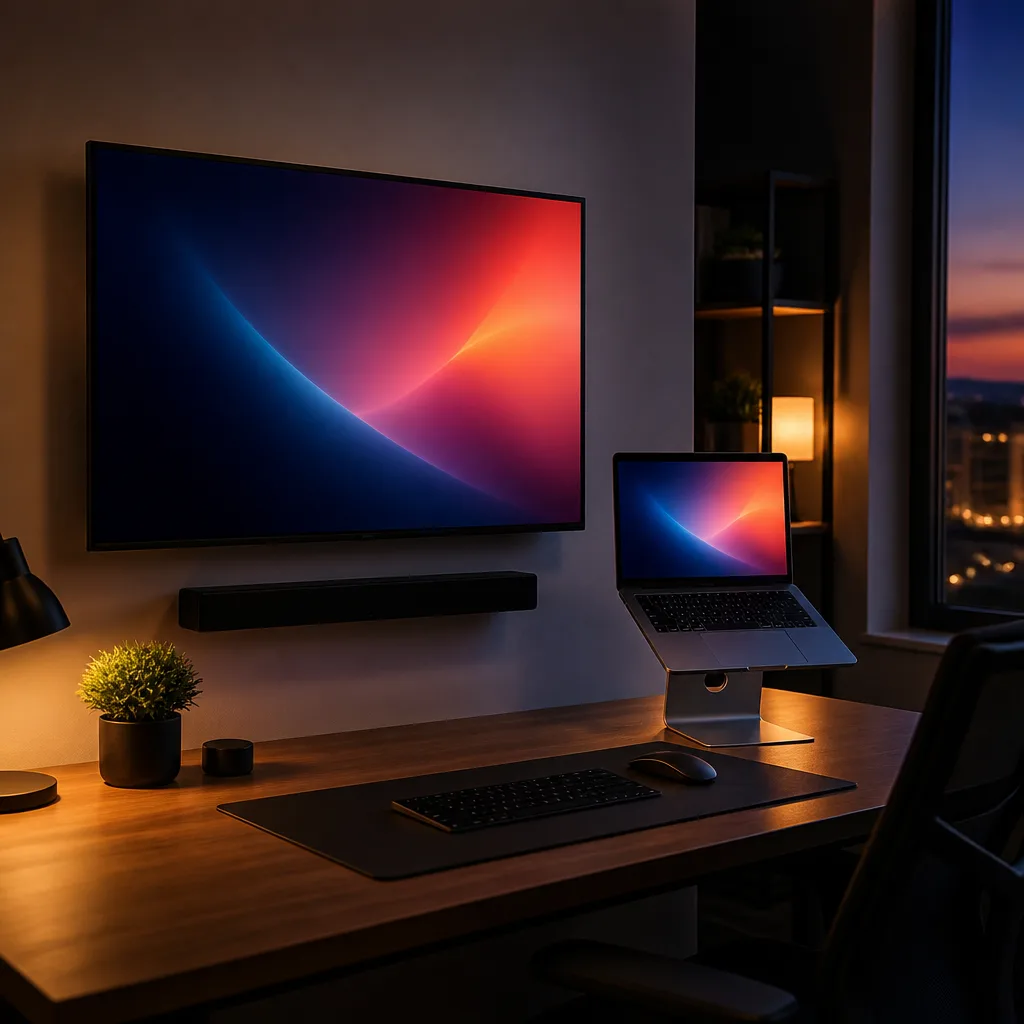 25
25Two screen office setup with TV and laptop
Combining a laptop on a raised stand with a separate wall mounted TV gives an ergonomic main screen at eye level alongside a much larger secondary display for spreadsheets, documents or a video call. This suits anyone doing detailed work who also wants extra screen space. Keep the laptop stand and external keyboard close together so your hands and the main screen stay aligned, with the TV positioned slightly to the side for glancing rather than constant focus.
You need: laptop stand, external keyboard and mouse, TV, wall mount, video cable
- Place the laptop on a stand at eye level on the main desk area
- Connect an external keyboard and mouse to the raised laptop
- Mount the TV on the wall to one side of the desk
- Connect the TV to the laptop with a video cable
- Set the TV as an extended display and test moving windows across both screens
Matching productProjector screenAmazon →
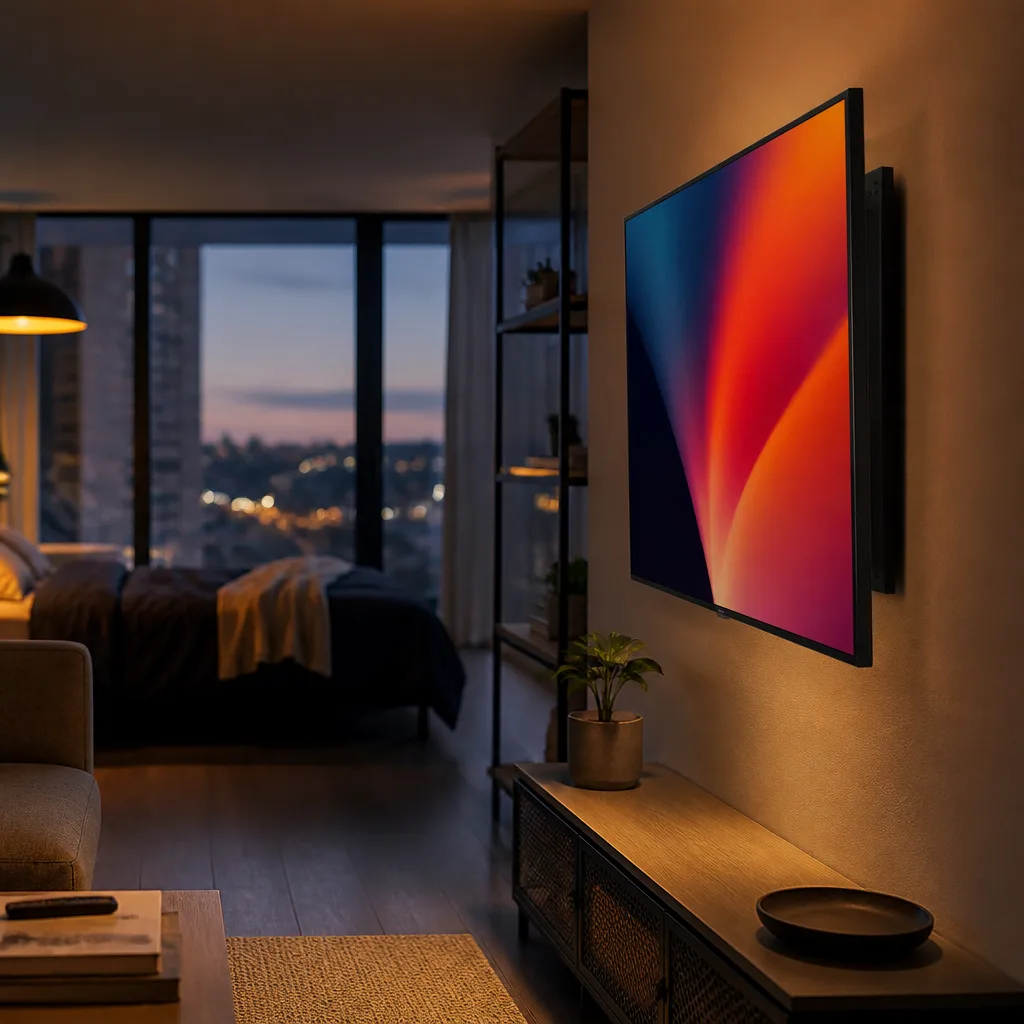 26
26Foldable wall mount for a tiny studio
A slim foldable mount lets the TV sit almost flush against the wall when not in use, then pull forward and angle towards the room when needed. This suits a tiny studio where every centimetre of floor space matters. Check the fold flat depth of the mount before buying, since some models still protrude more than expected once the TV itself is attached.
You need: TV, slim foldable wall mount, stud finder
- Locate wall studs at the planned position
- Attach the foldable mount bracket to the wall
- Hang the TV on the mount
- Fold the mount flat against the wall when the TV is not in use
- Pull the mount forward and angle it towards your seating spot when watching
Matching productTilting wall mountAmazon →
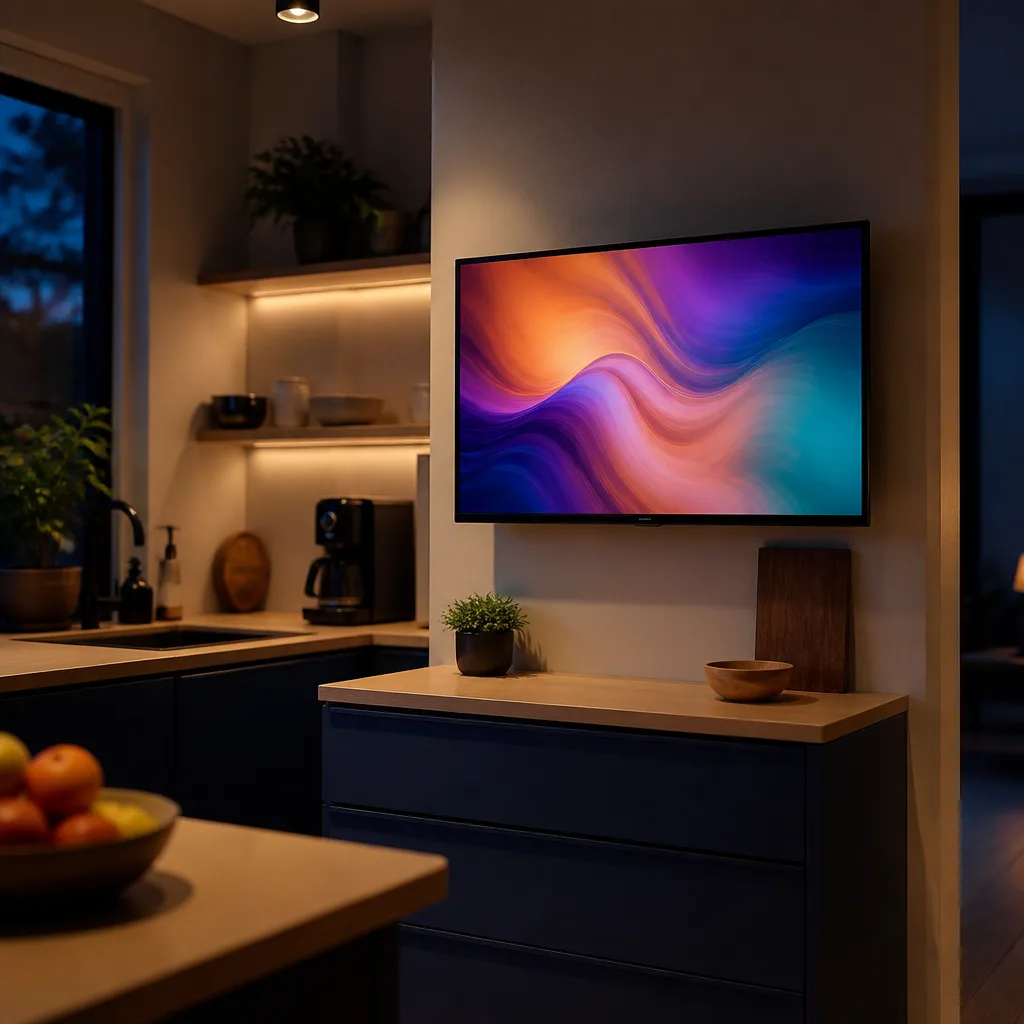 27
27TV above a compact kitchen counter
A small TV mounted above a stretch of unused counter space lets you follow the news or a recipe while cooking, without taking up any counter space itself. Keeping the screen size modest suits the shorter viewing distance typical in a kitchen. Position the TV away from direct splashes or steam, such as above a counter rather than directly over a hob.
You need: small TV, wall mount, stud finder
- Choose a wall position above the counter, away from steam or splashes
- Locate wall studs and attach the mount
- Hang the TV and check it does not obstruct cupboard doors
- Route the power cable neatly down to the nearest outlet
- Test the viewing angle from the main areas of the kitchen
Matching product4K TV 43 inchAmazon →
 28
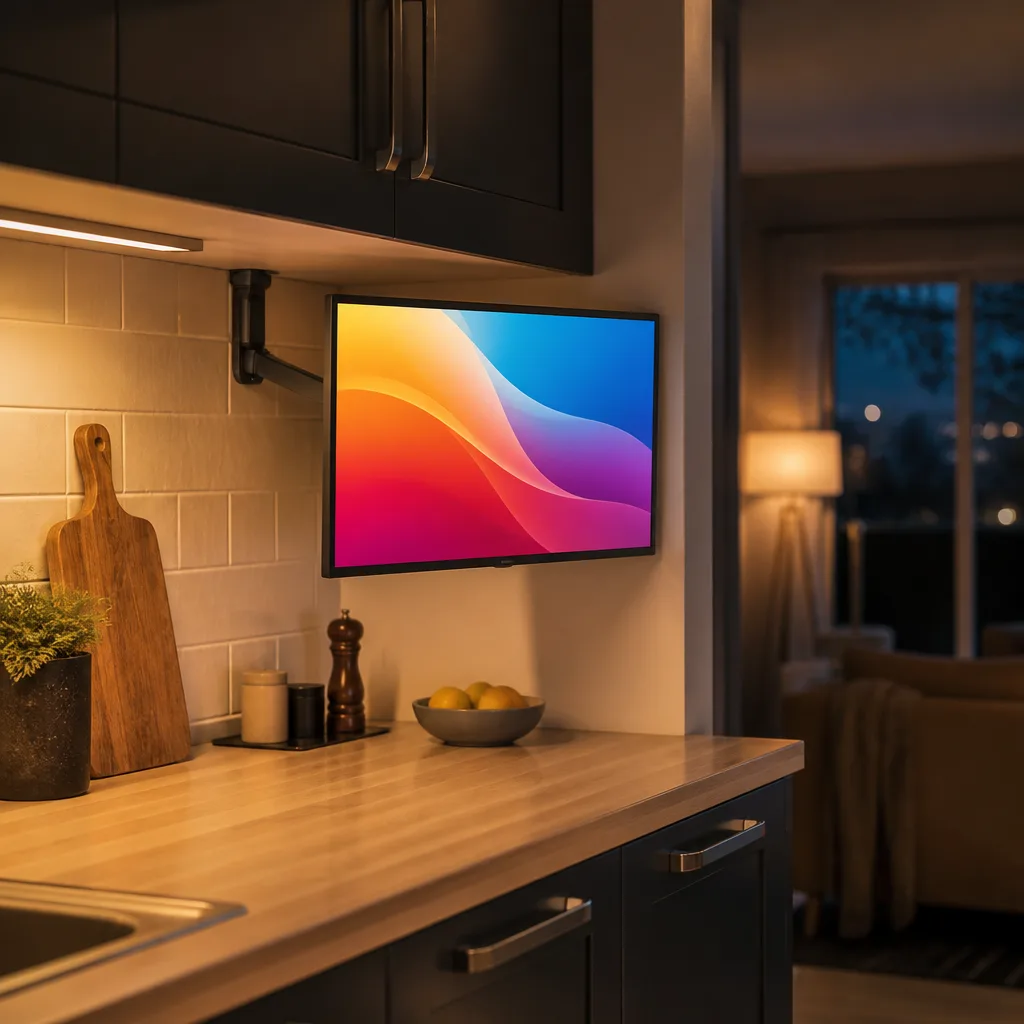
28Under cabinet TV for a small kitchen
Mounting a small TV under an existing upper cabinet uses space that is otherwise empty, keeping the screen well above the counter and out of the way of food preparation. A swing arm bracket lets the screen fold away against the cabinet when not needed. Check the cabinet can bear the added weight of the mount and TV before installing, since some upper cabinets are not built for extra load.
You need: compact TV, under cabinet swing arm mount, screws suited to the cabinet material
- Check the upper cabinet's construction can support the added weight
- Mark the mount position on the underside of the cabinet
- Attach the swing arm mount securely to the cabinet
- Fit the TV to the mount and test the swing and fold motion
- Route the power cable up into the cabinet or along the wall
Matching product4K TV 43 inchAmazon →
 29
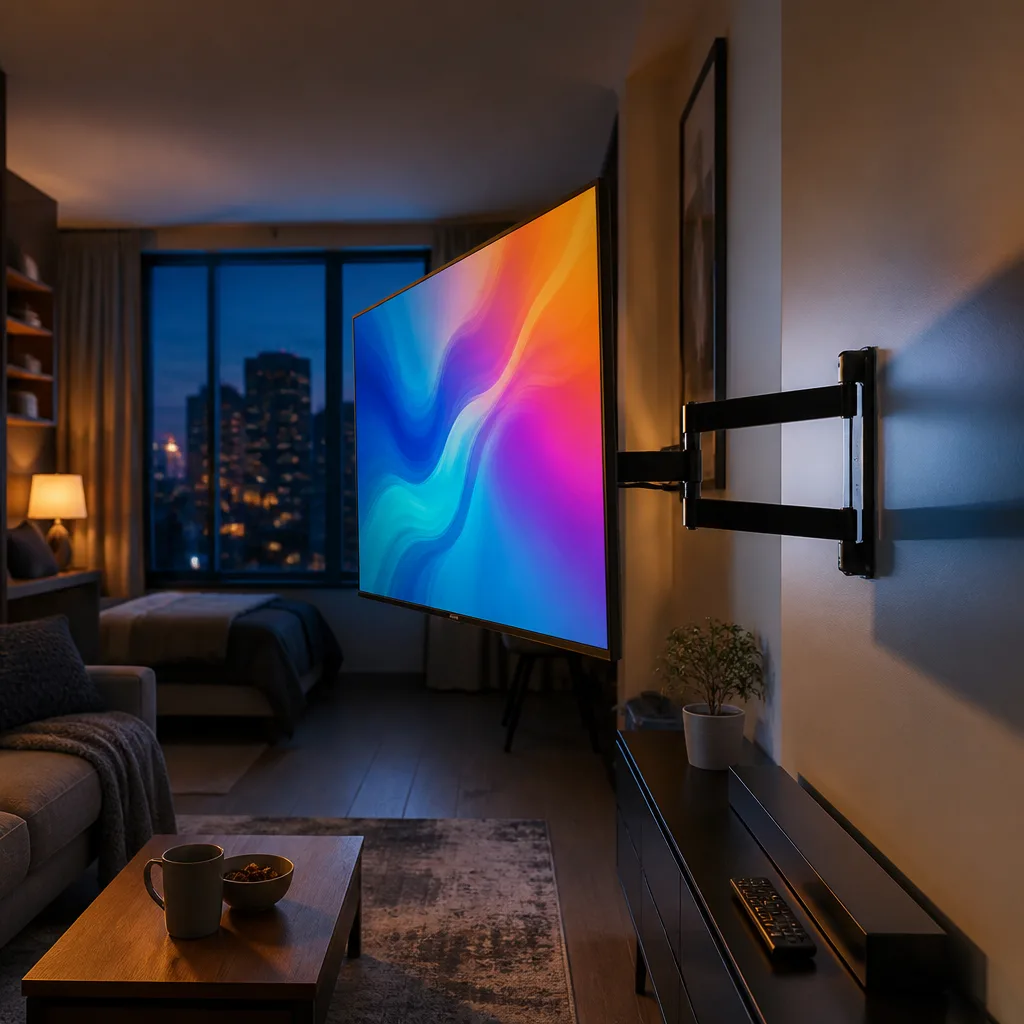
29Fold out TV arm for a small apartment
An extending arm mount lets a TV pull well away from the wall and swivel towards a bed, sofa or desk in turn, which suits a small apartment where one room serves several purposes. Folded back, the screen sits close to the wall and out of the way. Check the arm's reach and weight rating against your TV before installing, since longer arms need a stronger wall fixing.
You need: TV, extending or fold out wall arm, stud finder, spirit level
- Locate wall studs at a position central to the room's different zones
- Attach the fold out arm bracket securely to the wall
- Fit the TV to the arm and check it moves smoothly
- Test extending and swivelling the arm towards each seating or bed area
- Fold the arm back against the wall when not in use
Matching product4K TV 43 inchAmazon →
 30
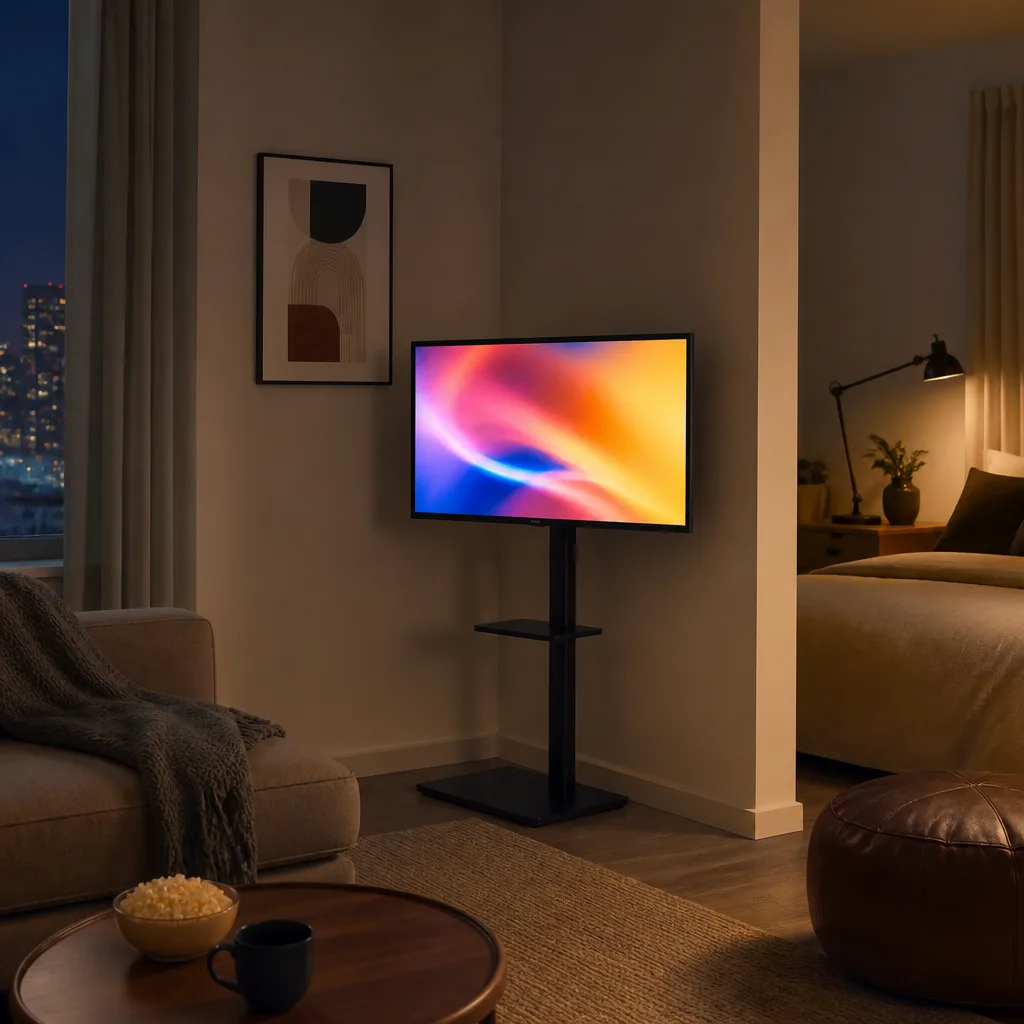
30Compact TV stand for a studio corner
A narrow floor stand placed in an unused corner gives a small studio a TV spot without any wall drilling, which suits renters or anyone who moves often. Choosing a stand with a small footprint keeps the corner from feeling crowded. Weigh down or anchor a lightweight stand if the room sees much foot traffic, so the TV cannot easily be knocked over.
You need: small TV, narrow floor stand, anti tip strap if needed
- Choose an unused corner with a nearby power outlet
- Assemble the narrow floor stand
- Place the TV on the stand and check it sits stable and level
- Fit an anti tip strap if the room sees much foot traffic
- Route the power cable along the skirting board to the outlet
Matching productTV standAmazon →
Explore
Read next
 TV Panel Types Explained: LCD, QLED, Mini-LED, OLED and MoreAn overview of TV panel technologies, from LCD and QLED to OLED and Micro-LED, compared on blacks, brightness, viewing angle and burn-in ri…
 TV Buying Guide: How to Choose the Right TelevisionA practical, step by step guide that walks you through every decision in buying a television, from screen size to sound.
 TV Size Guide: Screen Sizes and Viewing DistanceA practical guide to translating screen diagonal into real dimensions and choosing the right size for your viewing distance and room.