
6 min read
TV picture settings explained
Most televisions leave the factory tuned for the shop floor, not your living room. A few adjustments make a real difference to what you actually see.
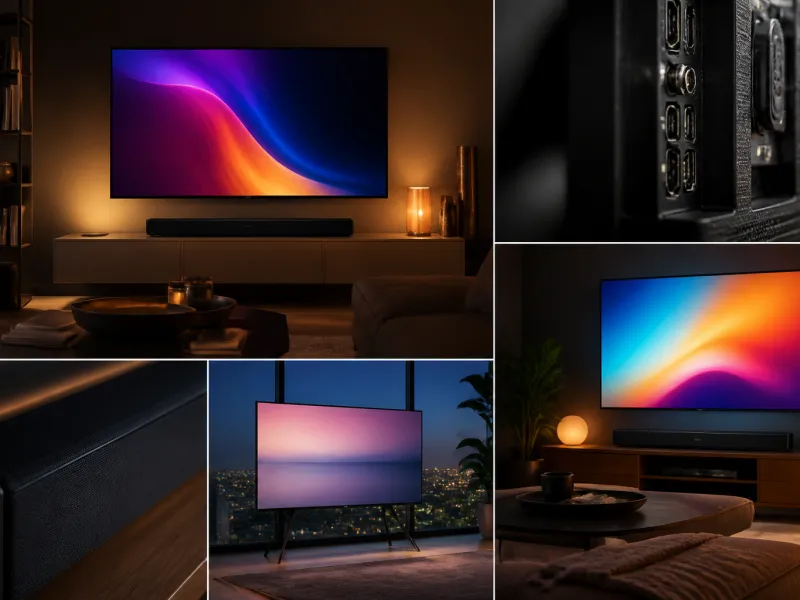
Every television has a picture menu full of sliders and modes, and most viewers never open it after the first setup. That is a shame, because the factory settings are usually chosen to look striking under bright shop lighting, not to look natural on your sofa. A handful of changes, most of them free and reversible, can noticeably improve sharpness, colour and comfort.
This guide walks through the settings that matter, in the order it makes sense to adjust them. You do not need any special equipment, just a dim room, a comfortable seat and a bit of patience.
01
Start with a picture mode
Almost every TV offers several preset picture modes, typically named something like Standard, Vivid, Sports, Game and a cinema oriented mode. Vivid and similar names usually push brightness, contrast and colour saturation far beyond what looks natural, which is why they catch the eye in a shop aisle full of competing screens.
For everyday viewing, a mode labelled Cinema, Movie or Filmmaker Mode is the best starting point. These modes aim for accurate colour and a more neutral brightness rather than an exaggerated look. From there you can fine tune individual settings rather than switching modes back and forth.
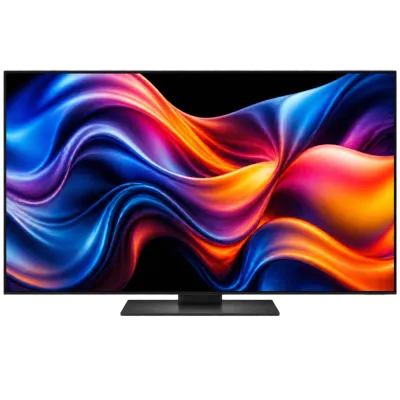 Matching productOLED TV 65 inchAmazon →
02
Filmmaker Mode and why it exists
Filmmaker Mode is an industry standard picture mode found on many recent televisions. Selecting it turns off motion smoothing and sharpening filters and sets colour and brightness closer to the standard used when films and shows are mastered. The idea is that what you see should resemble what the director and colourist intended, rather than an interpretation added by the television.
Filmmaker Mode is not compulsory to use, and some viewers prefer a brighter or livelier look, especially in a room with daylight coming in. It is simply a reliable, accurate baseline that you can adjust from if needed. See the glossary entry on Filmmaker Mode for more background.
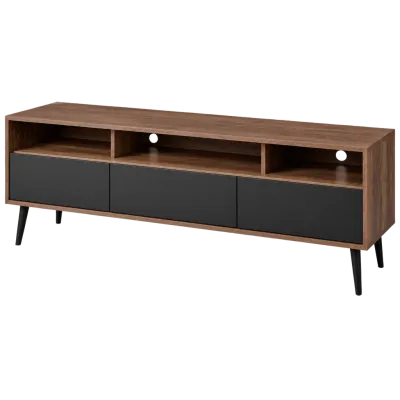 Matching productTV standAmazon →
03
Brightness and backlight
Brightness and backlight are often confused but do different jobs. Backlight (or OLED light, on OLED screens) controls how much light the panel produces overall. Brightness, sometimes hidden under a different name in the menu, actually adjusts the black level, that is, how dark the darkest parts of the image appear.
A simple approach: set the backlight according to your room. In a bright room, more light helps the image stay visible; in a dark room, a high backlight setting will feel harsh and tire the eyes over a long session. For brightness, or black level, aim for a setting where dark scenes show real black rather than a washed out grey, without losing visible detail in shadows. Many TVs include a test pattern or a simple guide for this in the picture menu.
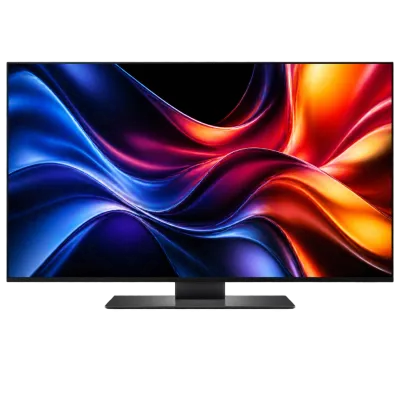 Matching productOLED TV 55 inchAmazon →
04
Contrast and colour temperature
| Setting | What it does | Practical tip |
|---|---|---|
| Contrast | Controls the brightness of the lightest parts of the image | Too high clips bright detail to plain white; back it off a few steps from the maximum |
| Colour temperature | Shifts the overall image towards blue (cooler) or red (warmer) | A warm or standard setting looks more natural for film and photos than the cool factory default |
| Colour saturation | Controls how intense colours appear | Leave near the default; pushing it up makes skin tones look artificial |
| Gamma | Controls the balance between shadows and midtones | Leave at the recommended or standard value unless the image looks flat or crushed |
Contrast set too high is one of the most common picture problems. It can make bright skies or white clothing lose all texture, appearing as a flat white patch instead of gradual detail. Reducing contrast slightly, and letting backlight do the work of overall brightness, usually restores that detail.
05
Sharpness, and why lower is often better
Sharpness in a TV menu is not the same as resolution. It is an artificial edge enhancement filter that adds a thin halo around outlines to make the image look crisper at a glance. On a modern 4K or 8K panel showing good quality source material, this filter usually adds unwanted ringing artefacts around edges rather than genuine detail.
A good starting point is to set sharpness very low, sometimes to zero, and see whether the image actually looks softer or simply cleaner. Many viewers find that turning sharpness down, not up, gives the most natural and detailed looking picture, particularly on faces and fine textures like fabric.
06
Motion smoothing
Motion smoothing, sometimes branded with names like motion interpolation or a manufacturer specific term, generates extra frames between the original ones to make movement look smoother. It is often responsible for the so called soap opera effect, where films look like they were shot on video rather than film, with unnaturally fluid motion.
For films and drama, turning motion smoothing off, or setting it to a low or film oriented preset, tends to look more natural. For fast moving sport, a moderate amount of smoothing can reduce blur and judder, so some viewers keep a light setting for sport and switch it off for films. See motion smoothing in the glossary for more detail, and our guide on TVs for watching sport if that is a priority for you.
07
HDR settings
When a television plays HDR content, it usually switches automatically into an HDR picture mode, and some manual settings become locked or replaced with HDR specific ones. It is worth checking that any HDR specific brightness or tone mapping setting is left at its default or recommended position, since these are calculated for the panel's actual capabilities.
If your television supports Dolby Vision or HDR10+, content mastered in those formats can adjust brightness scene by scene automatically. For a broader explanation of the different HDR formats, see our dedicated guide on HDR explained.
08
Setting up picture modes per input
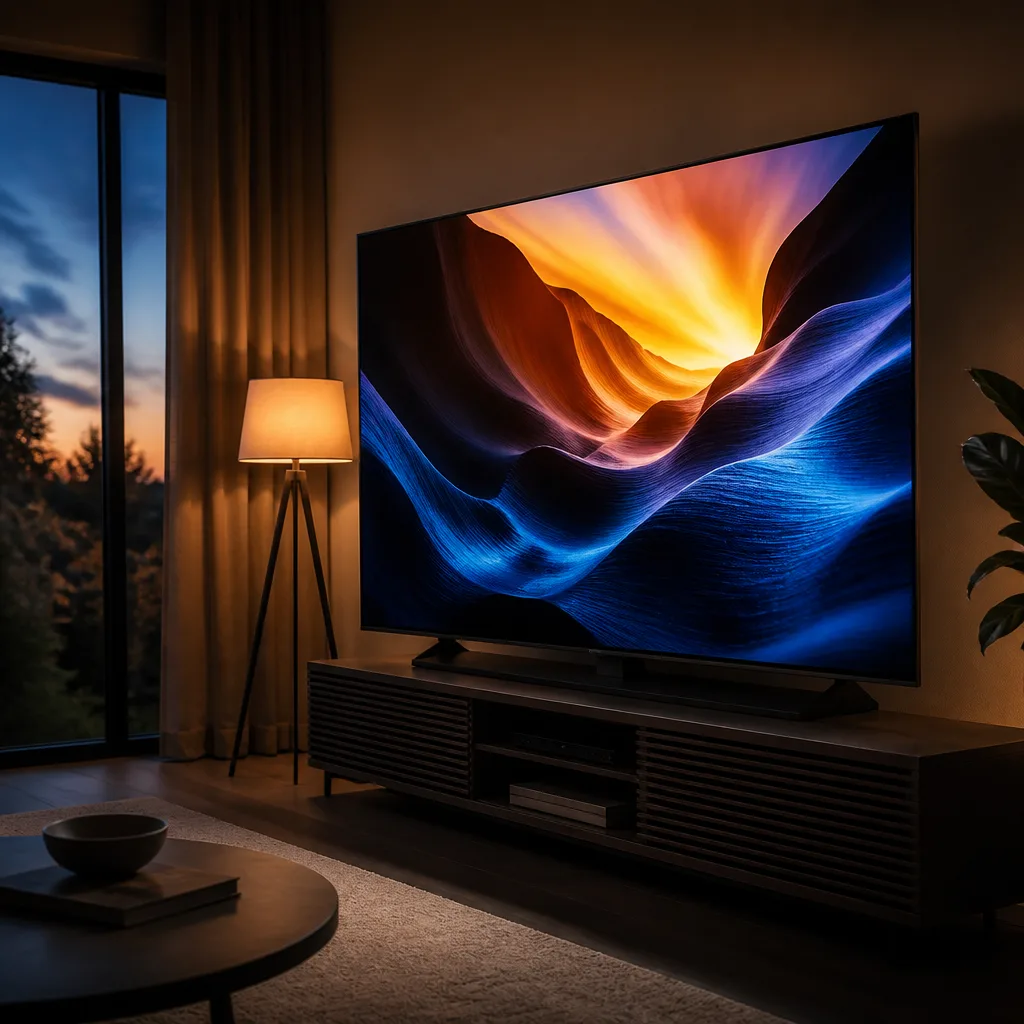
Most televisions remember picture settings separately for each input, such as one setting for a games console, another for a set top box, and another for a streaming app built into the TV itself. This is useful: you can set a Game mode with fast response for a console, and a Cinema or Filmmaker mode for a Blu-ray player or streaming box, without them interfering with each other.
Game mode specifically reduces the processing delay between what the console sends and what appears on screen, which matters for fast paced games. It typically switches off motion smoothing and some picture processing to achieve this. See our guide on TVs for gaming for more on this trade off between picture processing and responsiveness.
 Matching product4K streaming stickAmazon →
09
Frequently asked questions
Do I need a calibration disc or professional calibration?
No. A careful eye, a dim room and the adjustments in this guide will get most viewers most of the way there. Professional calibration with measuring equipment can refine things further, but it is optional and mainly of interest to enthusiasts.
Why does my TV look different in the shop compared to at home?
Shops usually run televisions in a bright, vivid mode designed to stand out under strong lighting, and often at unusually high brightness. At home, in normal room lighting, a calmer, more accurate mode will generally look better and be more comfortable to watch for long periods.
Will changing picture settings damage my television?
No. Picture settings are entirely reversible and most menus include a reset option that returns everything to factory defaults. Feel free to experiment.
Should I use the same settings for every input?
Not necessarily. Many TVs store settings per input, so it is reasonable to use a faster, simpler mode for a game console and a more accurate cinema style mode for movies and shows.
Explore
Read next
 TV Panel Types Explained: LCD, QLED, Mini-LED, OLED and MoreAn overview of TV panel technologies, from LCD and QLED to OLED and Micro-LED, compared on blacks, brightness, viewing angle and burn-in ri…
 TV Buying Guide: How to Choose the Right TelevisionA practical, step by step guide that walks you through every decision in buying a television, from screen size to sound.
 TV Size Guide: Screen Sizes and Viewing DistanceA practical guide to translating screen diagonal into real dimensions and choosing the right size for your viewing distance and room.